
How do I tag many posts at once?
There are three quick ways to tag lots of posts.
Accept the suggestions on Home
Section titled “Accept the suggestions on Home”When captions name your products, Home shows Make N posts shoppable with each post and its matching product. Click Tag all N (or Tag it for one post). Click Review in Posts to check them one by one instead.
Tag the same products on several posts
Section titled “Tag the same products on several posts”-
Click Posts in the app menu.
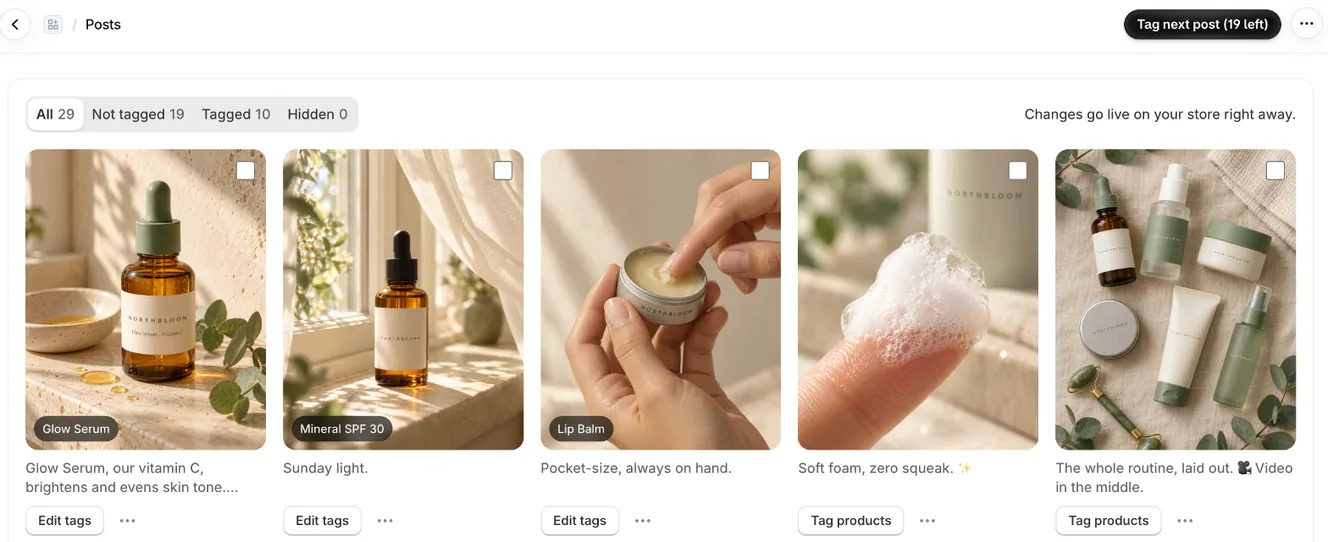
Posts: filters at the top, tagged products on each post, Tag products or Edit tags below -
Tick the box on each post you want.
-
Click Tag products in the bar at the top, pick the products, and click Select.
Work through untagged posts
Section titled “Work through untagged posts”- In Posts, click Tag next post (N left) at the top of the page.
- Pick the products for that post and click Select.
- Click it again for the next one.
- Note: Tagging several posts at once adds the products to each post. It doesn’t remove tags they already have.
- Note: On Free you can tag up to 6 posts. If you select more, the app tags as many as fit and tells you, for example Tagged 2 posts. 3 more need Pro (Free includes 6). Tag all on Home also tags only as many as fit; when you’ve used all 6, Home offers Pro for the rest.
- Note: Use the Not tagged filter to see only posts without products.
Related articles
Section titled “Related articles”- How do I tag products on a post?
- How do I tag new posts automatically?
- How do I hide a post or pin it to the front?
Still having trouble? Contact us from Support inside Zegsu Instafeed and we’ll help you directly.