
How do I limit an offer to certain customers or countries?
Add rules in the Who sees it section of the offer. Without rules, everyone sees the offer.
-
Open your offer from the Offers page.
-
In Who sees it, open Add a rule and choose a rule.
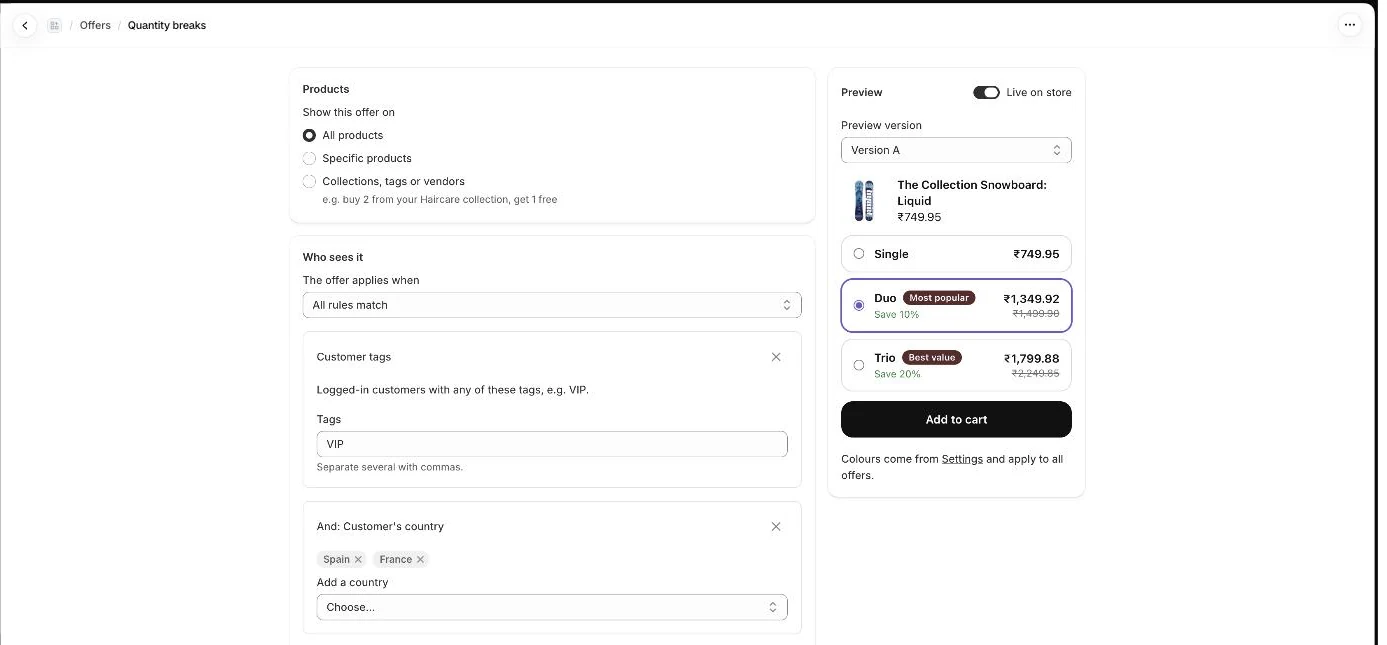
Choose which products the offer covers and who sees it, with a live preview -
Fill in the rule. For example, type tags like VIP, or add countries with Add a country.
-
Add more rules with Add another rule if needed.
-
With two or more rules, choose All rules match or Any rule matches.
-
Click Save.
Available rules
Section titled “Available rules”- Cart value: At least and At most, in your store currency.
- Customer’s country: countries your store ships to.
- Store language: the language the customer is browsing in.
- Customer tags: logged-in customers with any of these tags.
- Orders placed: logged-in customers within a range of past orders. A maximum of 0 targets first orders.
- Note: Customer tags and Orders placed need customers to be logged in. Others see your theme’s normal quantity picker.
- Note: Country and language are checked on the product page.
- Note: Cart value is checked at checkout. The widget still shows, but the discount only applies if the cart value fits.
- Note: All rules are checked again at checkout before the discount applies.
- Note: With more than one rule, choose All rules match or Any rule matches under The offer applies when.
- Note: Offers with rules show a Rules badge in the Offers list.
Related articles
Section titled “Related articles”- How do I create a quantity break offer?
- How do I schedule an offer?
- Why is the offer widget not showing on my product page?
- Why is the offer discount not applied in the cart or checkout?
- What rules can I use for a free gift?
Still having trouble? Contact us from Support inside Zegsu Upsell and we’ll help you directly.