
How do I get started after installing Zegsu Upsell?
Open the app and follow the Get set up checklist on the Home page. It has three steps and takes about 3 minutes. Each step ticks itself off when it is done.
-
Open Zegsu Upsell from your Shopify admin to reach the Home page.
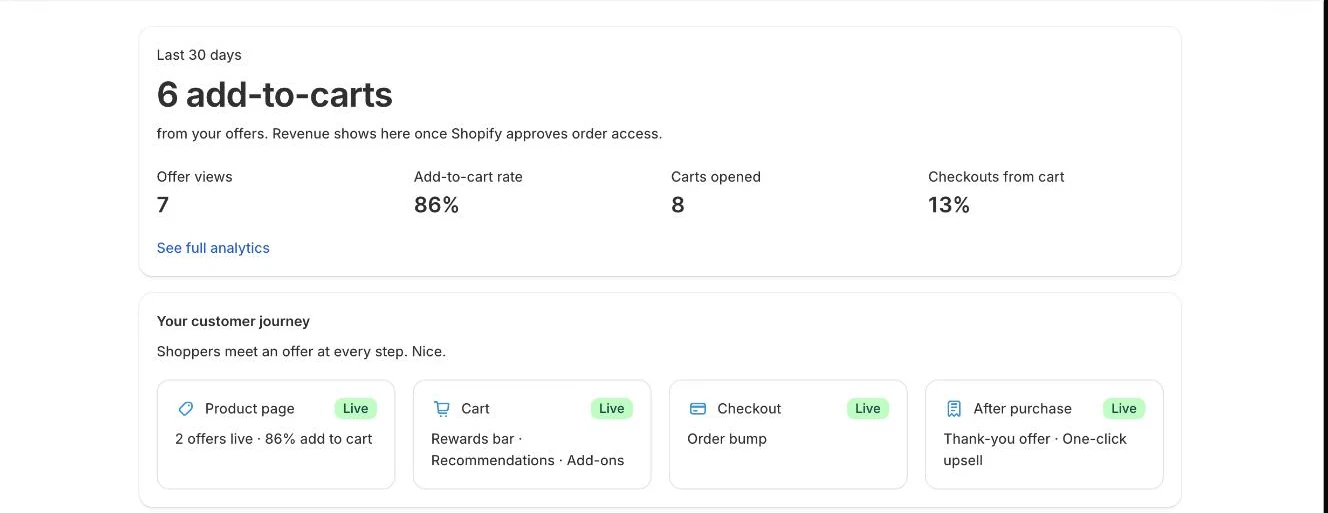
Home: your last 30 days and your customer journey, step by step -
Click Turn on widget in the first step. Your theme editor opens in a new tab with the Zegsu Upsell widget already switched on.
-
Click Save in the theme editor, then return to the app. Click I’ve done this if the step has not ticked yet.
-
Click Create offer in the second step to open the template gallery.
-
Pick a template, adjust it if you like, and save it. Everything is pre-filled.
-
Click View on store in the third step. It opens a product page that has your offer.
-
Try adding a tier to the cart to check it works.
When all three steps are done, the Home page shows your last 30 days instead, your customer journey (which of product page, cart, checkout and after purchase have a live offer), a Next idea to try, and your Top offers.
- Note: The app checks your live (published) theme. If you turned the widget on in a theme that is not published, the step will not tick.
- Note: The widget only appears on product pages that have a live offer.
- Note: To also use free gifts, cart rewards and cart extras, turn on the cart drawer from the Cart page.
Related articles
Section titled “Related articles”- How do I turn on the offer widget in my theme?
- How do I create a quantity break offer?
- What offer templates are available?
- How do I turn on the cart drawer?
- Why is the offer widget not showing on my product page?
Still having trouble? Contact us from Support inside Zegsu Upsell and we’ll help you directly.