
How do I change how the cart drawer looks?
You change the cart drawer’s look in the Design section of the Cart page. Colours and corner radius come from the Settings page and apply to every Zegsu widget. The Preview on the right shows your changes before you save.
-
Open the app and go to Cart.
-
Under Style, choose Side panel (full height) or Floating card (inset with rounded corners).
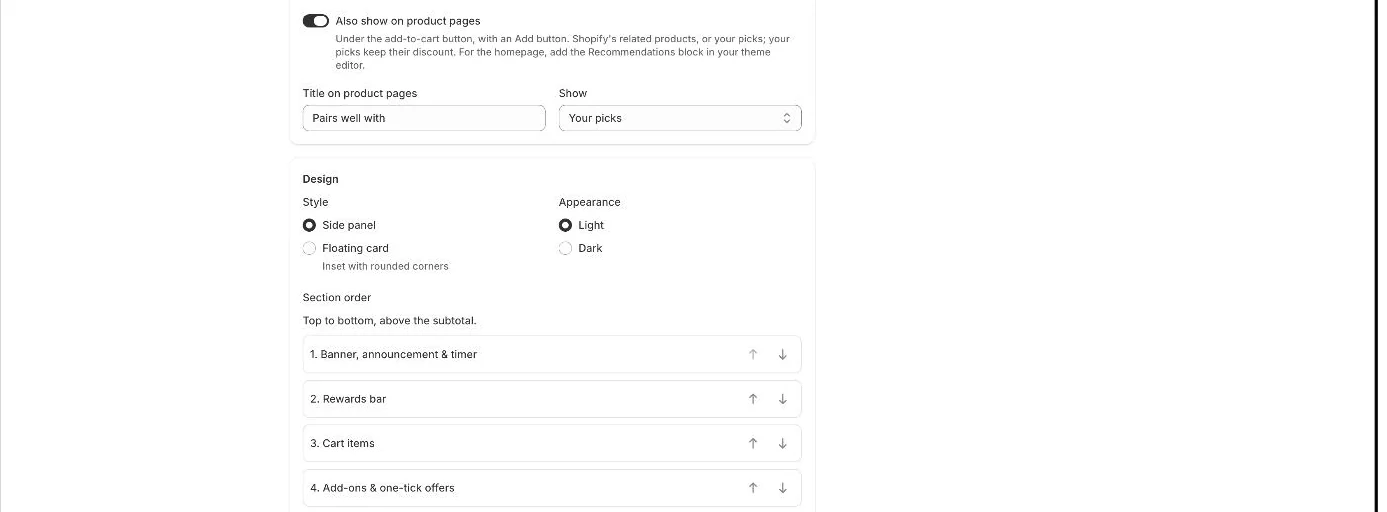
Also show on product pages, and the drawer's Design options -
Under Appearance, choose Light or Dark.
-
Under Section order, use the up and down arrows to reorder the sections, top to bottom above the subtotal.
-
To add a Banner image, upload the image in Shopify under Content → Files, copy its link and paste it in.
-
Optionally click Custom CSS to open the box and add your own styles.
-
Change the Drawer title and Checkout button text in the Text section if you like.
-
Click Save in the save bar.
- Note: The sections you can reorder are Banner, announcement & timer, Rewards bar, Cart items, Add-ons & one-tick offers and Recommendations.
- Note: The banner image link must start with https://. Otherwise you see “Use an https:// image link” and the image is not shown.
- Note: Custom CSS is for developers. It is added after the drawer’s own styles.
- Note: To change the Accent colour, Badge colour or Corner radius, go to Settings in the app. See How do I change the brand colours and widget style?.
Related articles
Section titled “Related articles”- What does the Zegsu cart drawer do?
- What extras can I add to the cart drawer?
- How do I translate the app into other languages?
Still having trouble? Contact us from Support inside Zegsu Upsell and we’ll help you directly.