
How do I add an order bump at checkout?
An order bump offers one more product inside checkout, under the cart lines. Your customer adds it with one click and it gets your discount. You set it up on the Checkout page in Zegsu Upsell. Order bumps only work on Shopify Plus stores, because Shopify only allows apps inside the checkout steps on Plus.
-
Open Zegsu Upsell and go to the Checkout page.
-
In the In checkout: order bump section, click Choose a product to offer and pick the product.
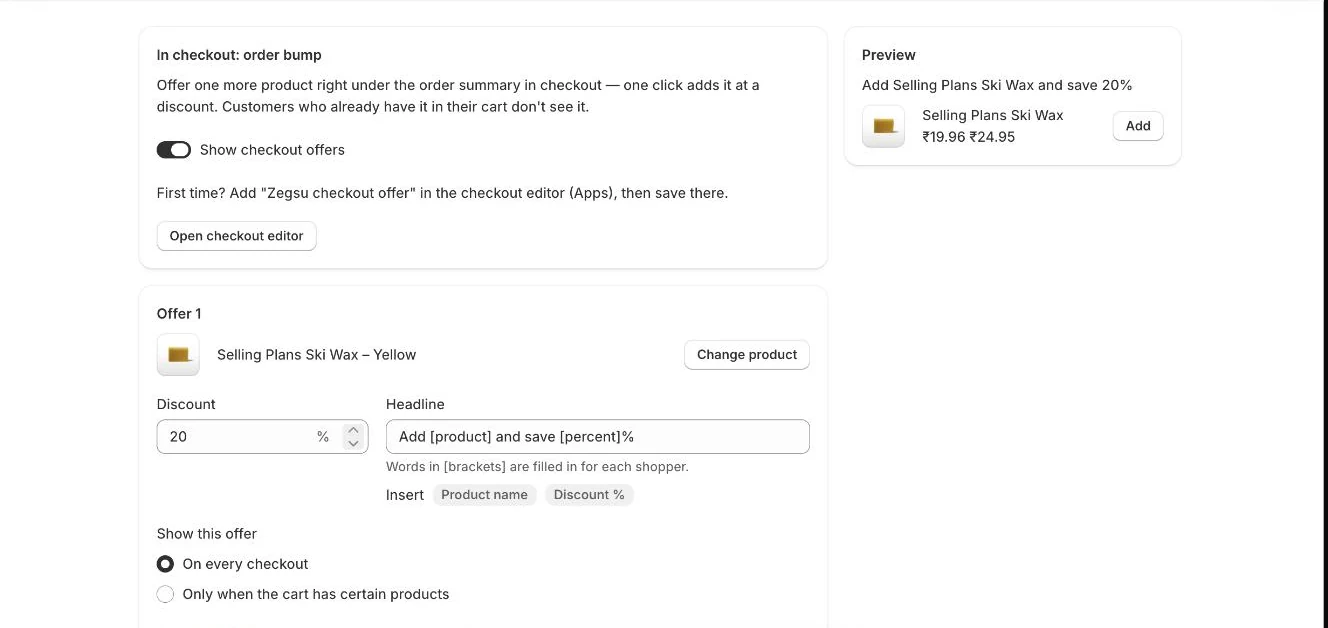
In checkout: order bump, with the offer, its discount and headline, and a preview -
Enter a Discount percentage (0–100) and edit the Headline. Words in brackets, like [product] and [percent], are filled in for each customer. Click Product name or Discount % under the field to insert one.
-
Under Show this offer, choose On every checkout or Only when the cart has certain products, then pick those products.
-
Make sure Show checkout offers is switched on, then click Save.
-
First time only: click Open checkout editor, add the Zegsu checkout offer block (under Apps), then save in the checkout editor.
-
Place a test order to check that the offer appears under the cart lines.
- Note: If your store is not on Shopify Plus, the Checkout page shows a Needs Shopify Plus banner. Your cart drawer offers and rewards still work on every plan.
- Note: You can add up to 3 order bump offers with Add another offer. Checkout shows the first offer the customer qualifies for.
- Note: Customers who already have the offered product in their cart don’t see that offer.
- Note: The default headline is “Add [product] and save [percent]%”.
- Note: The offer uses the product’s first variant. Use Change product to pick a different product.
- Note: If the offered product is sold out, the offer is hidden.
- Note: The Preview panel on the right shows how your first offer will look.
- Note: To remove an offer, click Remove offer and then Save.
Error states
Section titled “Error states”- “Couldn’t add this item. Please try again.” (shown to your customer in checkout) → The product could not be added to the cart. → Ask the customer to try again. Check that the product is in stock and available in their market.
Related articles
Section titled “Related articles”- Why is my checkout offer not showing?
- How do I add an offer to the thank-you page?
- How do I set up post-purchase upsells?
- What limits apply to offers and settings?
- How do I translate the app into other languages?
Still having trouble? Contact us from Support inside Zegsu Upsell and we’ll help you directly.