
How do I set up auto recharge?
Auto Recharge adds a fixed amount to your SMS balance whenever it drops below a level you choose. Set it up under Automation > Auto Recharge.
-
Open Automation in the SMSGo menu and click Auto Recharge.
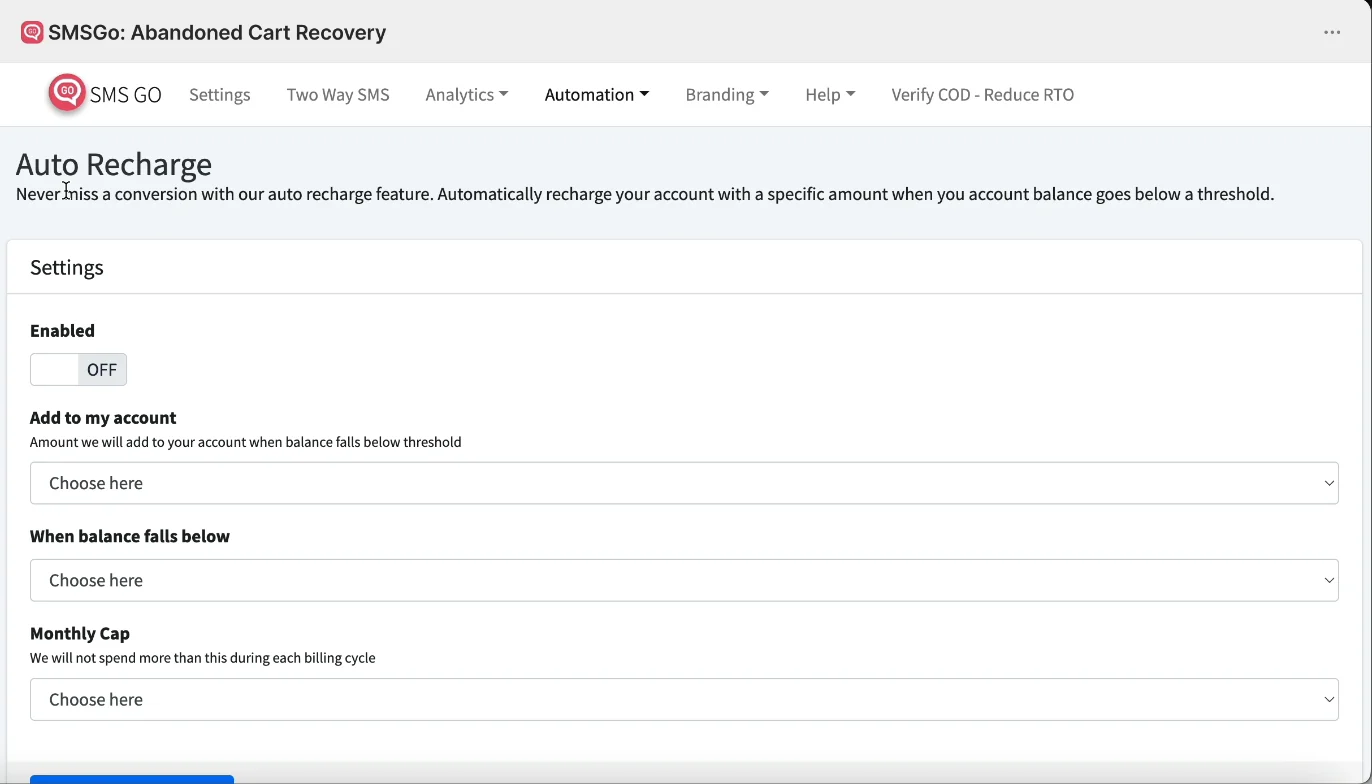
Automation > Auto Recharge settings -
Turn Enabled on.
-
Under Add to my account, choose how much to add each time. Options run from $10 to $1,000.
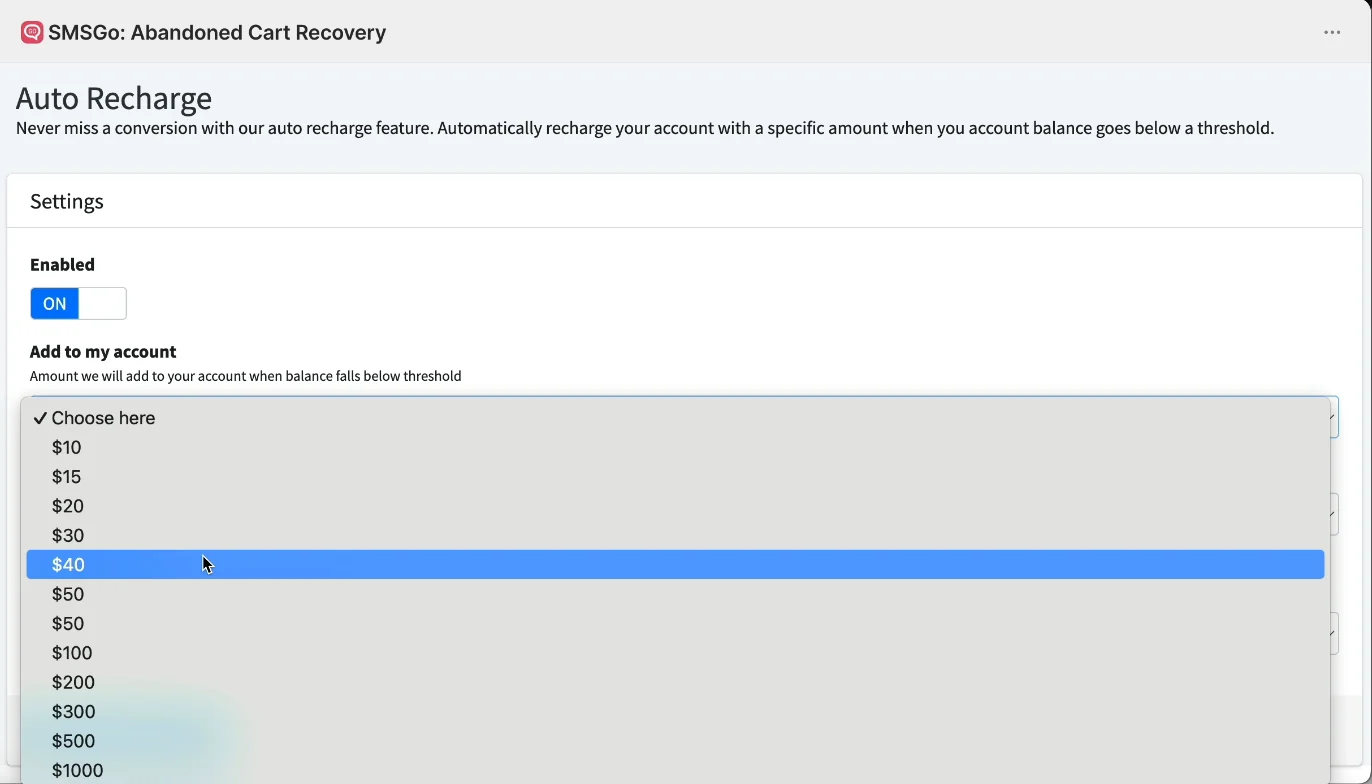
Choose how much to add to your account -
Under When balance falls below, choose the balance that starts a top-up. Options run from $5 to $1,000.
-
Under Monthly Cap, choose the most SMSGo may add in one billing cycle.
-
Click Save Changes.
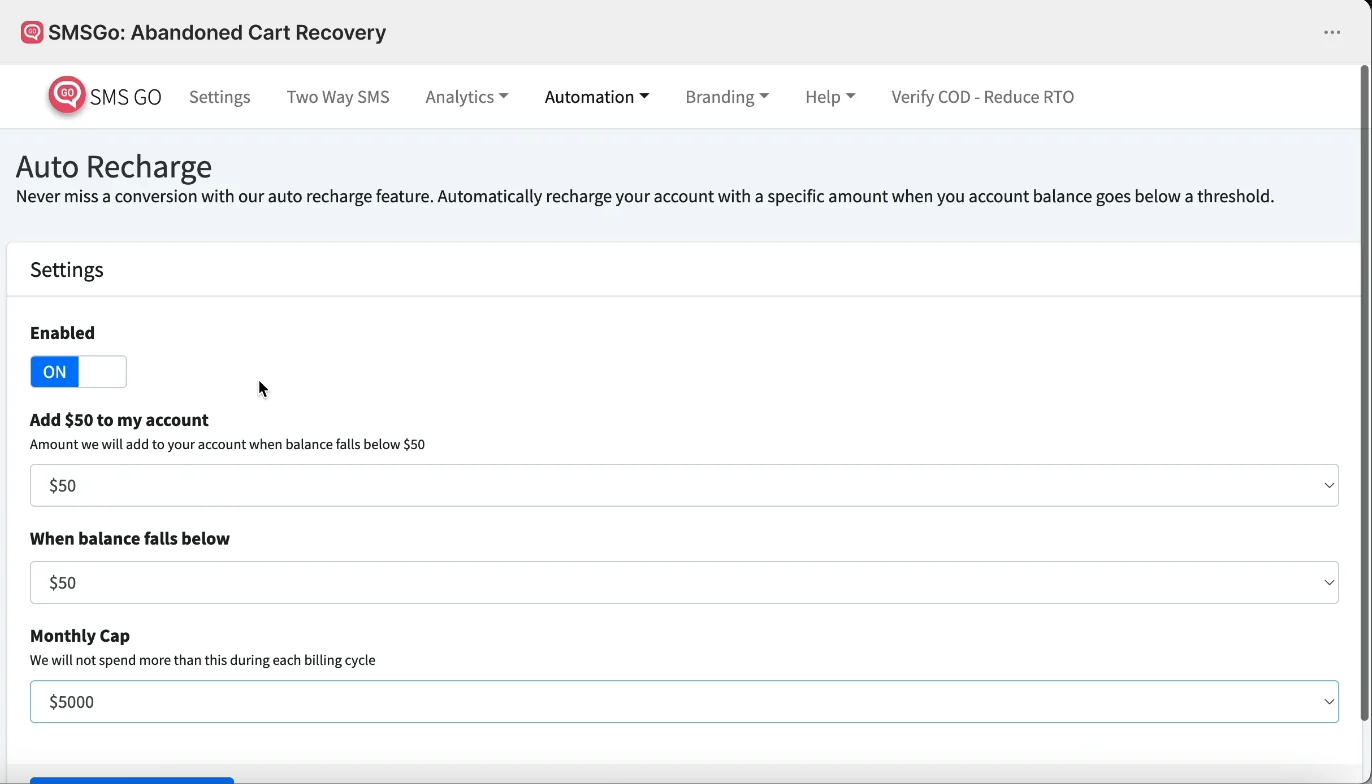
Auto Recharge enabled with amount, threshold and monthly cap
- Note: Auto Recharge is available on both the Basic and Premium plans.
- Note: The labels update to match your choices. For example, choosing $50 changes the heading to Add $50 to my account.
- Note: To add funds once instead, see How do I add funds to my SMS balance?
Still having trouble? Contact us from Help > Support inside SMSGo and we’ll help you directly.