
How do I apply an offer to a collection, tag or vendor?
Choose Collections, tags or vendors under Show this offer on. Products in any of the collections, tags or vendors you add are included.
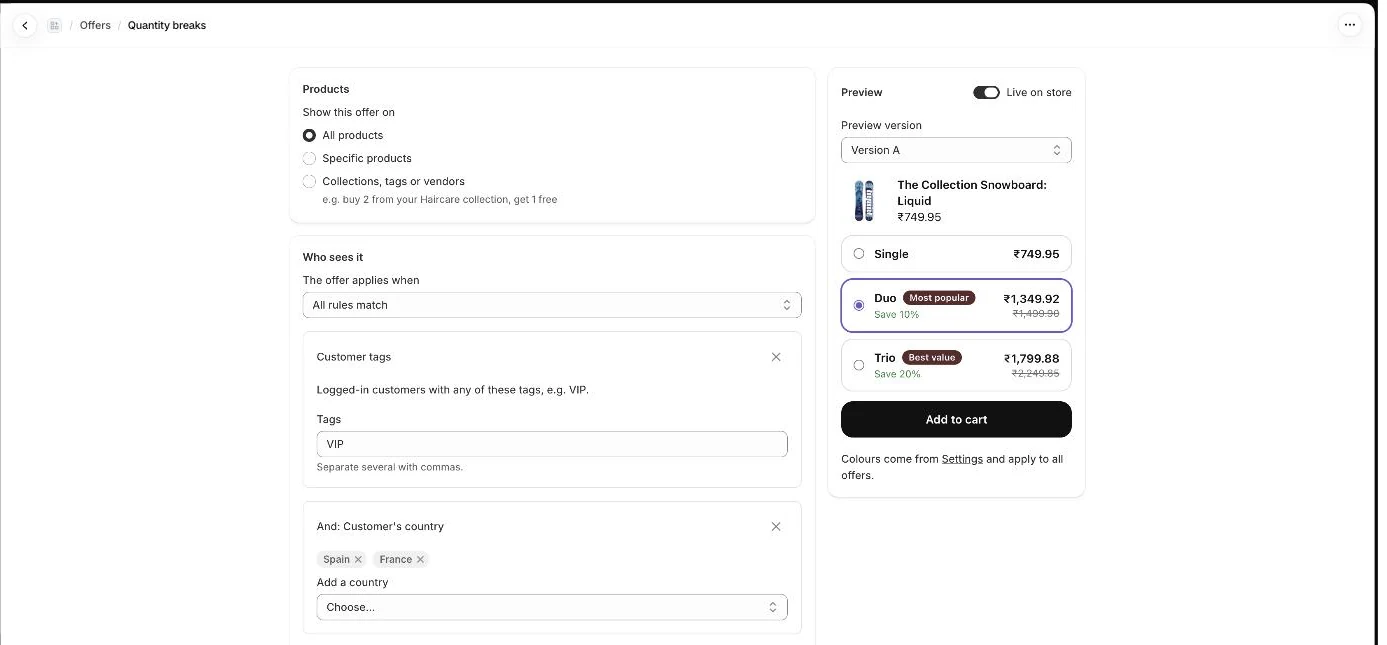
- Open your offer from the Offers page, or create a new one.
- Under Show this offer on, choose Collections, tags or vendors.
- Click Choose collections and select one or more collections.
- Type tags in Product tags and brands in Vendors. Separate several with commas.
- Optionally set How items count to Mix & match across these products so all matching products count together.
- Click Save. The editor then shows “Applies to N products”.
- Note: The matching products are updated when you save the offer. They are also refreshed, at most once an hour, when you open the Offers page.
- Note: If you just added a product to a collection or tag, save the offer or open the Offers page to include it.
- Note: An offer covers up to 1,000 matching products.
- Note: This option is not available for Complete the bundle offers.
- Note: The Offers list shows the collections, tags (with #) and vendors in the Applies to column.
Related articles
Section titled “Related articles”- How do I create a quantity break offer?
- How do I create a Buy X, get Y free offer?
- What happens when two offers cover the same product?
- Why is the offer widget not showing on my product page?
- What limits apply to offers and settings?
Still having trouble? Contact us from Support inside Zegsu Upsell and we’ll help you directly.