
How do I A/B test an offer?
Click Start an A/B test in the offer editor. Half of your visitors see version B, and the results show which version sells better.
-
Open your offer from the Offers page.
-
In the A/B test section, click Start an A/B test.
-
Edit the Version B tiers. They start as your tiers with 5% more off.
-
Use Preview version to check how version A and B look.
-
Click Save to start the test.
-
Come back to the offer to see Views, Add-to-cart rate, Orders and Revenue for each version.
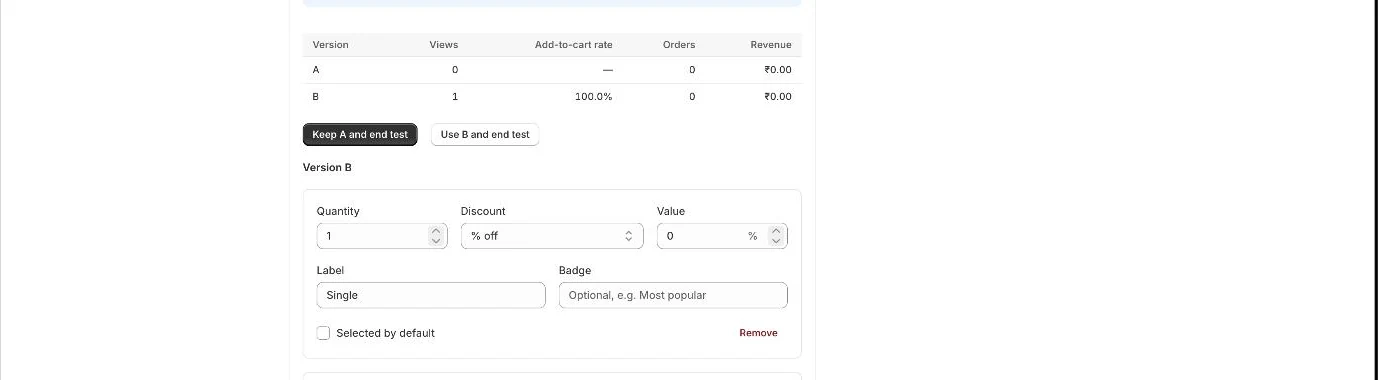
A/B test results per version, the end-test buttons and version B's tiers -
Click Keep A and end test or Use B and end test to finish.
- Note: Visitors are split 50/50. Each visitor always sees the same version, and the checkout discount matches it.
- Note: Results become reliable after about 100 views of each version. A banner tells you when one version is winning.
- Note: If you change the tiers of either version, the results start again from that save.
- Note: Before you save, click Cancel test to drop version B.
- Note: Version B must differ from version A in at least one discount or label.
- Note: Offers being tested show an A/B test badge in the Offers list.
Error states
Section titled “Error states”- “Version B is the same as version A — change a discount or label to test it.” → Both versions have identical tiers. → Change a discount, quantity or label in Version B.
- “Version B: [problem]” → A tier in Version B is not valid. → Fix the problem named in the message. See What do the offer error messages mean?.
Related articles
Section titled “Related articles”- How do tiers and discounts work?
- What does the Analytics page show?
- How do I pause, edit or delete an offer?
Still having trouble? Contact us from Support inside Zegsu Upsell and we’ll help you directly.