
How do I translate the app into other languages?
Open Settings in the app menu and click Manage languages to translate the text you wrote, such as the cart title, offer labels and checkout headlines. The app’s own buttons and messages are already translated into Spanish, French, German, Italian, Dutch and Portuguese. They follow your store’s language automatically.
-
Publish the language in your store first: in your Shopify admin, go to Settings → Languages.
-
Open Zegsu Upsell, click Settings in the app menu, then click Manage languages.
-
Pick a language from Add a language.
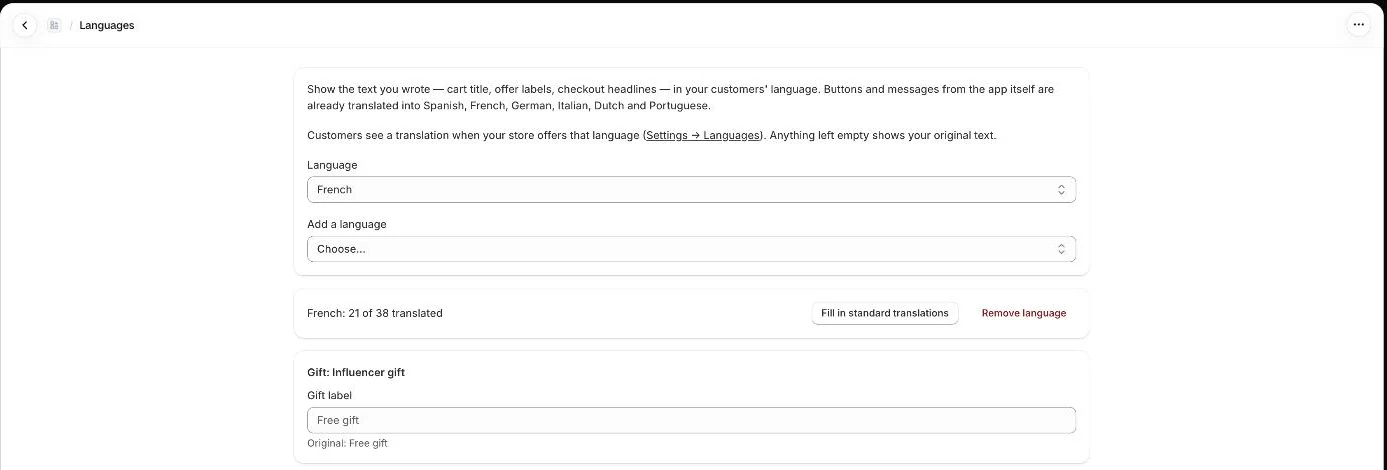
Languages: pick a language, fill in standard translations, edit each text -
Type a translation into each field. Each field shows your Original text below it.
-
Optional: click Fill in standard translations to fill empty fields that still use the app’s default wording.
-
Review the filled text and edit anything that does not fit.
-
Click Save in the save bar. You see Translations saved.
-
To translate another language, choose it in Language or add a new one.
What you can translate
Section titled “What you can translate”- Cart drawer: drawer title, checkout button, rewards messages and labels, recommendations titles, announcement, countdown, terms, age confirmation, empty cart and trust messages, and add-ons.
- Offer: [name]: heading, and each option’s label and badge (including Version B in A/B tests).
- Gift: [name]: gift choice heading and gift label.
- Checkout & after purchase: checkout offers, the thank-you offer headline and button, and after-payment offers.
- Note: Customers only see a translation if your store offers that language in Settings → Languages.
- Note: Any field left empty shows your original text.
- Note: Only active offers and gifts are listed. If you see Nothing to translate yet, create an offer or turn on the cart drawer first.
- Note: Fill in standard translations is available for Spanish, French, German, Italian, Dutch and both Portuguese options. Portuguese (Portugal) uses the Brazilian Portuguese wording. It only fills empty fields with the app’s default text. If you see Nothing to fill: these texts are your own, type your translations by hand.
- Note: A regional version of a language uses your translation for that language. For example, French (Canada) shoppers see your French text.
- Note: Click Remove language to delete a language and its translations, then click Save.
- Note: The app supports 20 languages, including Swedish, Danish, Norwegian, Finnish, Polish, Czech, Turkish, Japanese, Korean, Chinese, Arabic and Hindi. The app’s built-in buttons and messages are only pre-translated for the six languages above.
Related articles
Section titled “Related articles”- What limits apply to offers and settings?
- How do I change the brand colours and widget style?
- What does the Zegsu cart drawer do?
- How do I create a quantity break offer?
Still having trouble? Contact us from Support inside Zegsu Upsell and we’ll help you directly.