
How do I show product recommendations in the cart drawer?
You show recommendations in the Recommendations section of the Cart page. Shopify suggests related products for what is in the cart, and customers add them in one click. You can also choose your own products (Your picks) and give them a discount.
-
Open the app and go to Cart.
-
Turn on Show product recommendations in the Recommendations section.
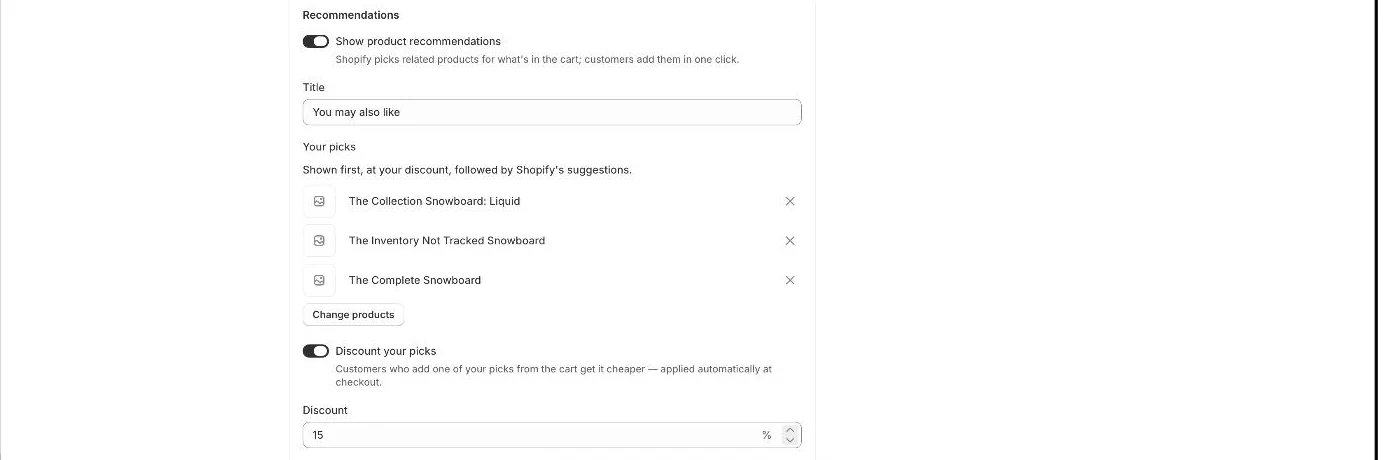
Recommendations: your picks and the picks discount -
Edit the Title shown above the products (for example “You may also like”).
-
Click Choose products under Your picks and select a few best-sellers or add-ons (up to 8).
-
Optionally turn on Discount your picks and enter the Discount percentage.
-
Click Save in the save bar.
How products are chosen
Section titled “How products are chosen”- Without a discount, Shopify’s suggestions show first. Your picks show when Shopify has no suggestions for the cart, which is common on new stores.
- With Discount your picks on, your picks show first at the discounted price (crossed-out original price), followed by Shopify’s suggestions.
- Up to 4 products show at a time. Products already in the cart and sold-out products are skipped.
- Note: Only your picks get the discount, and only when added from the cart or a product page recommendation. At checkout the discount shows as “Cart deal: X% off”. Shopify’s own suggestions stay at full price.
- Note: If you turn on Discount your picks without choosing products, you see “Choose at least one product above — only your picks are discounted.”
- Note: Suggestions are based on the first product in the cart.
- Note: The cart drawer must be turned on in your theme. See How do I turn on the cart drawer?.
Related articles
Section titled “Related articles”- How do I show recommendations on product pages and the homepage?
- What does the Zegsu cart drawer do?
- What extras can I add to the cart drawer?
Still having trouble? Contact us from Support inside Zegsu Upsell and we’ll help you directly.