
How do I add funds to my SMS balance?
Click Add Funds on the red Balance card in SMSGo, enter $5 or more, and approve the charge in Shopify. SMSGo uses this balance to pay for every SMS it sends.
-
Open SMSGo from Apps in your Shopify admin.
-
Click Add Funds at the bottom of the red Balance card.
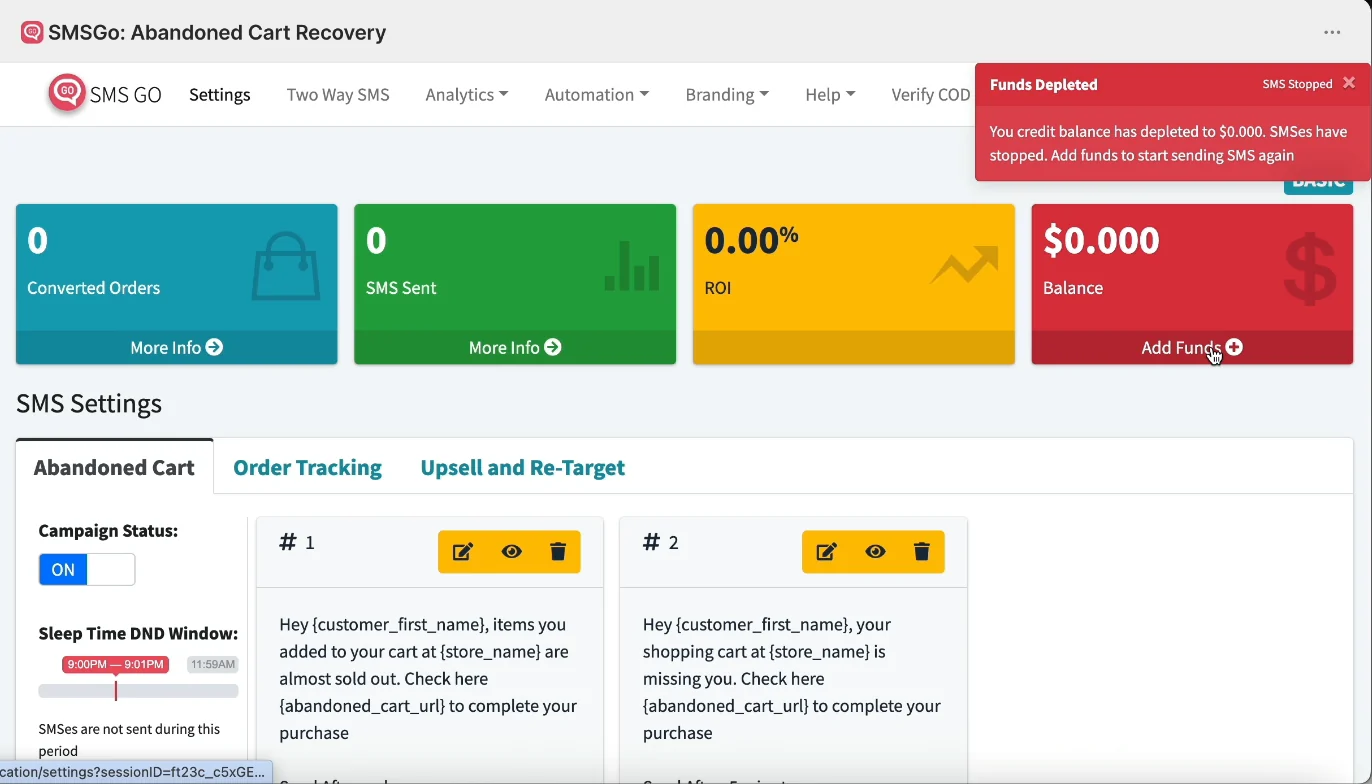
Click Add Funds on the red Balance card -
Enter the amount in US dollars. The minimum is $5.
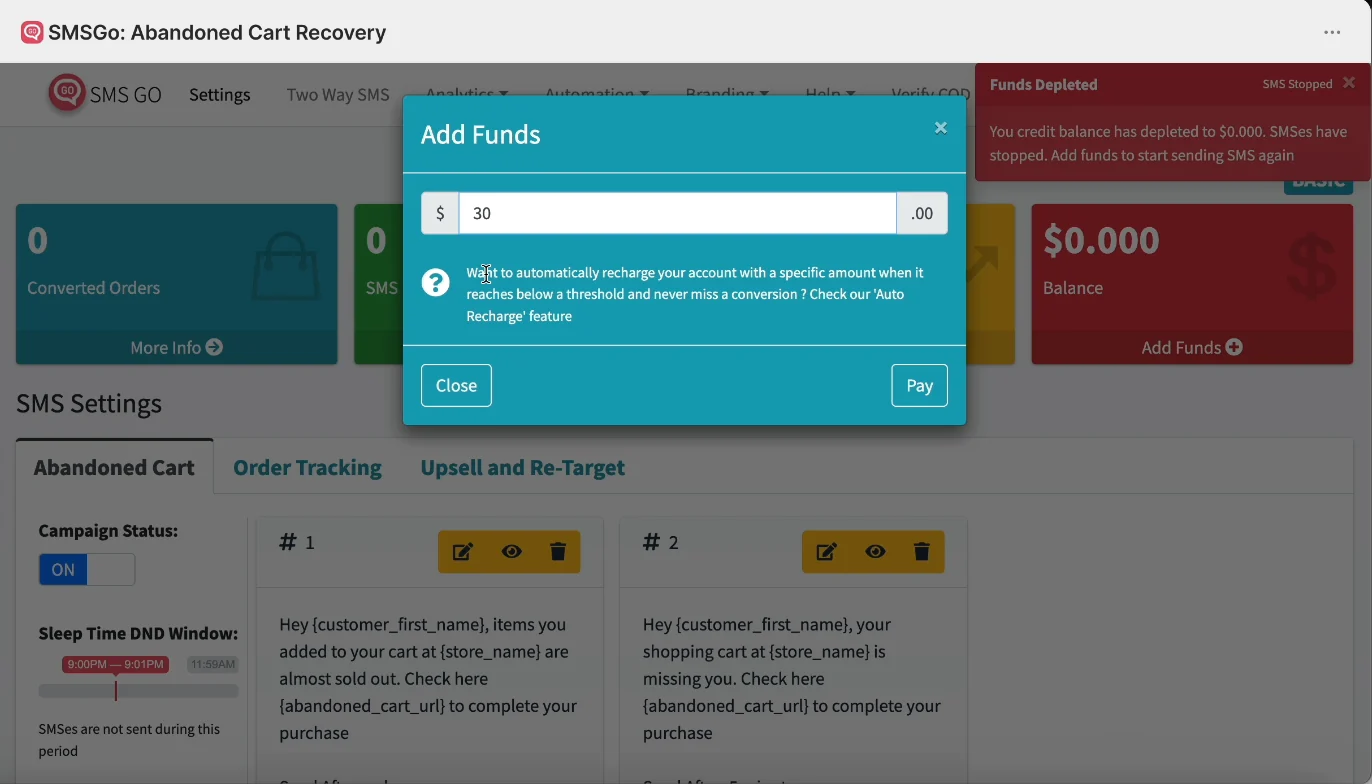
Enter an amount and click Pay -
Click Pay. Shopify opens an Approve charge page.
-
Check the Charge summary, choose how to pay, and click Approve.
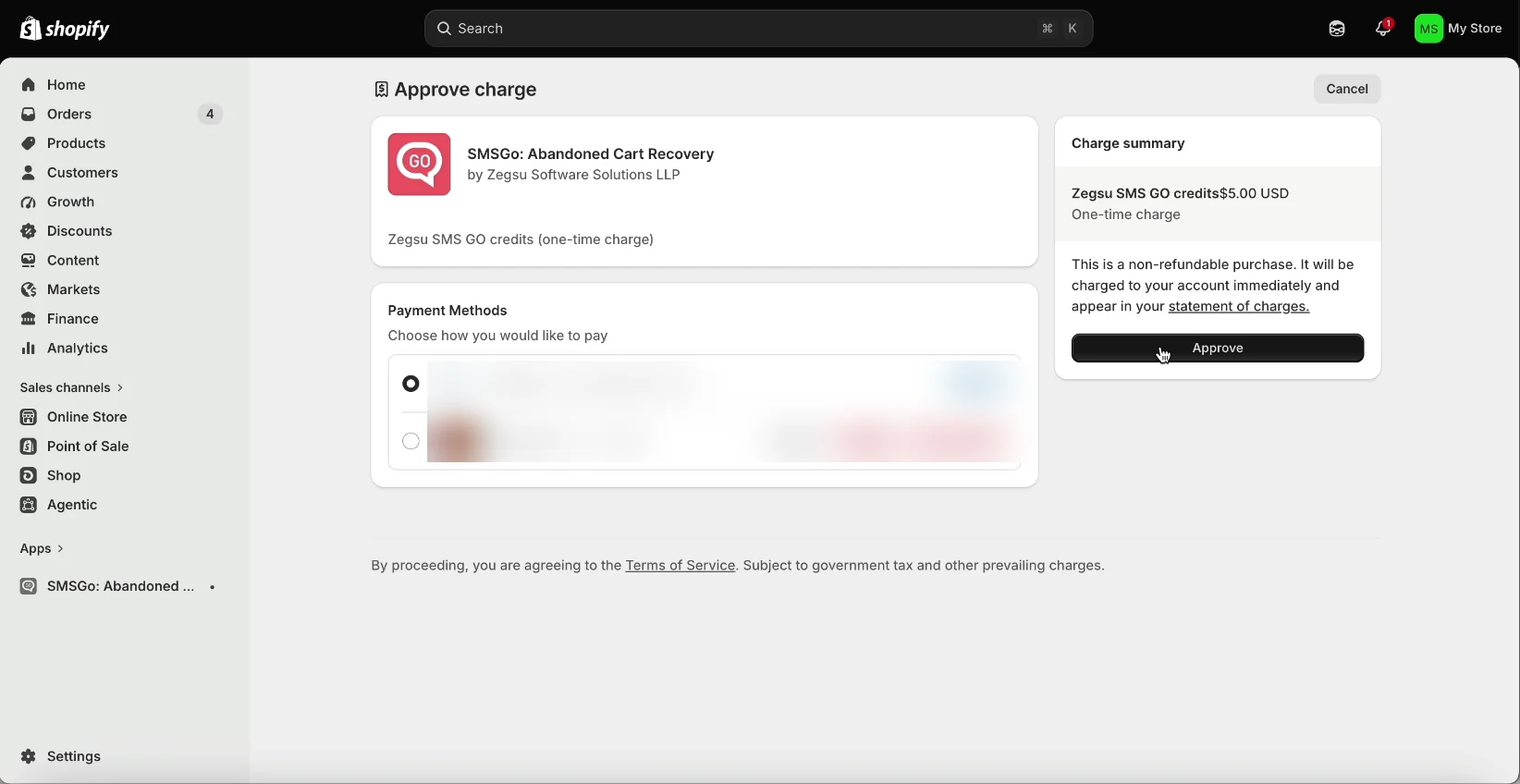
Approve the one-time, non-refundable credit charge in Shopify -
Wait for Shopify to return you to the SMSGo dashboard.
- Note: SMS credits are a one-time, non-refundable purchase. Shopify adds the charge to your Shopify bill.
- Note: When your balance reaches $0, SMSGo shows a Funds Depleted alert and stops sending SMS until you add funds.
- Note: To top up automatically when your balance runs low, see How do I set up auto recharge?
Error states
Section titled “Error states”-
Minimum recharge amount is $5 → You entered less than $5. → Enter $5 or more and click Pay again.
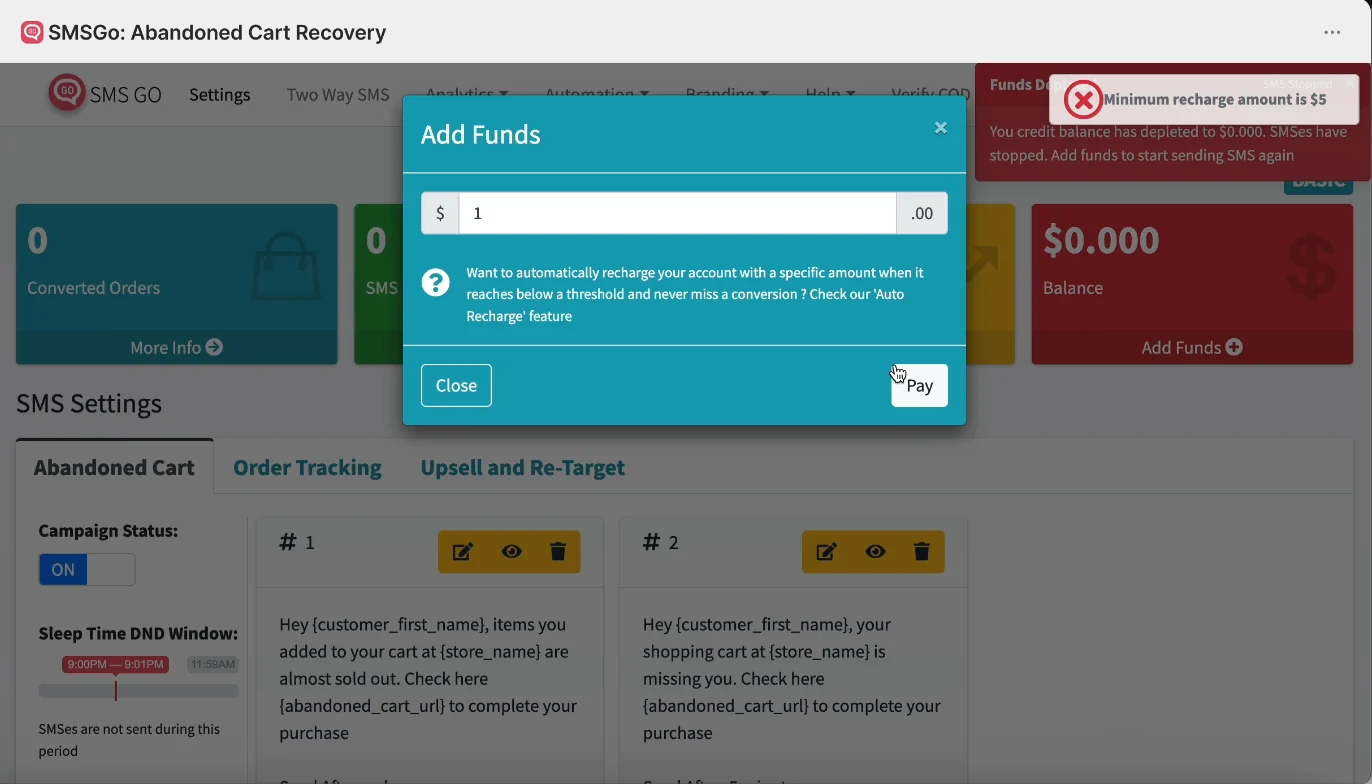
Error: Minimum recharge amount is $5
Still having trouble? Contact us from Help > Support inside SMSGo and we’ll help you directly.