
How do I let customers choose their free gift?
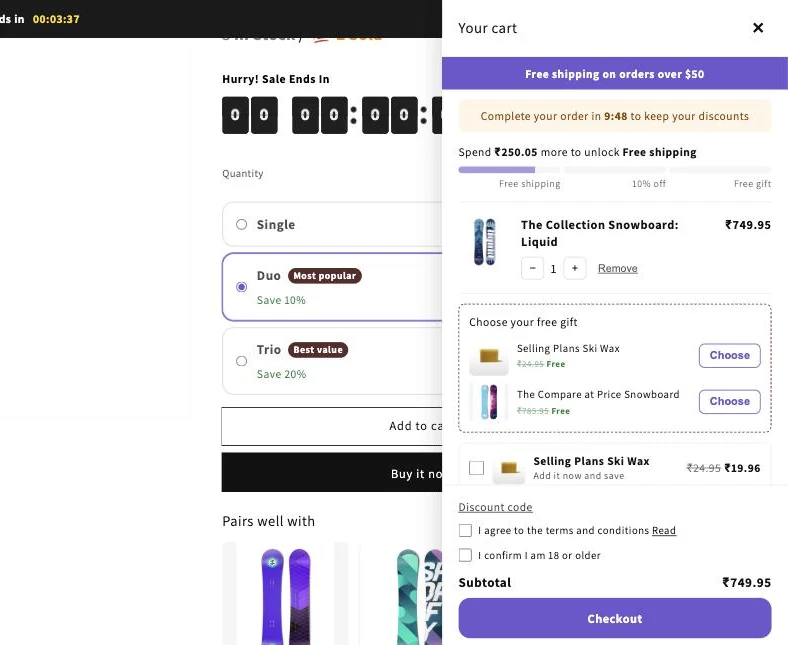
You let customers pick their gift by setting How customers get it to Customers choose one. When the cart qualifies, the cart drawer shows your gifts under a heading. The customer clicks Choose on one, and it is added free.
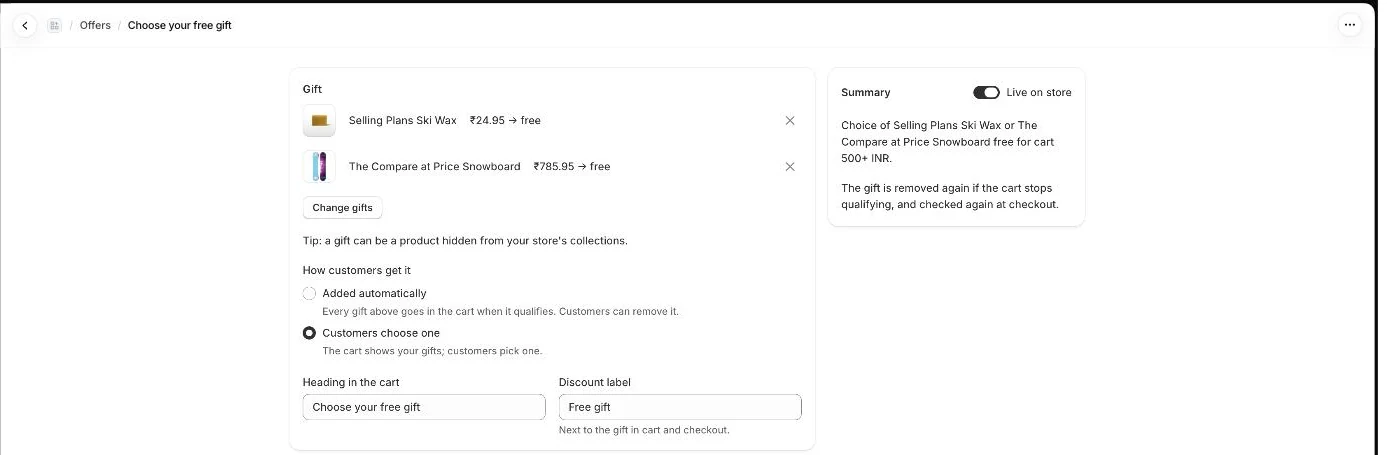
- Open Offers, click Create offer, and pick the Choose your free gift template. Or open an existing gift offer.
- Click Choose gift products and select the gifts to offer, up to 6.
- Under How customers get it, select Customers choose one.
- Edit Heading in the cart if you like. The default is “Choose your free gift”.
- Set the Discount label shown next to the gift in the cart and at checkout.
- Set your rules under Who gets it, for example a minimum cart value.
- Click Save and go live, or Save for an existing offer.
What customers see
Section titled “What customers see”- A list of your gifts, each with its normal price crossed out and “Free”.
- A Choose button on each gift. The chosen gift shows Selected.
- Choosing a different gift swaps it. The previous gift is removed.
- Note: Nothing is added until the customer picks a gift.
- Note: Only one gift is free in this mode. If a customer adds a second gift by hand, it is charged at full price.
- Note: The picker shows only while the cart qualifies. If the cart stops qualifying, the chosen gift is removed.
- Note: You can translate the heading and label on the Languages page.
- Note: The Zegsu cart drawer must be turned on for the picker to show.
Related articles
Section titled “Related articles”- How do I give a free gift with purchase?
- What rules can I use for a free gift?
- Why was the free gift not added or removed?
- How do I turn on the cart drawer?
- How do I translate the app into other languages?
Still having trouble? Contact us from Support inside Zegsu Upsell and we’ll help you directly.