
How do I show recommendations on product pages and the homepage?
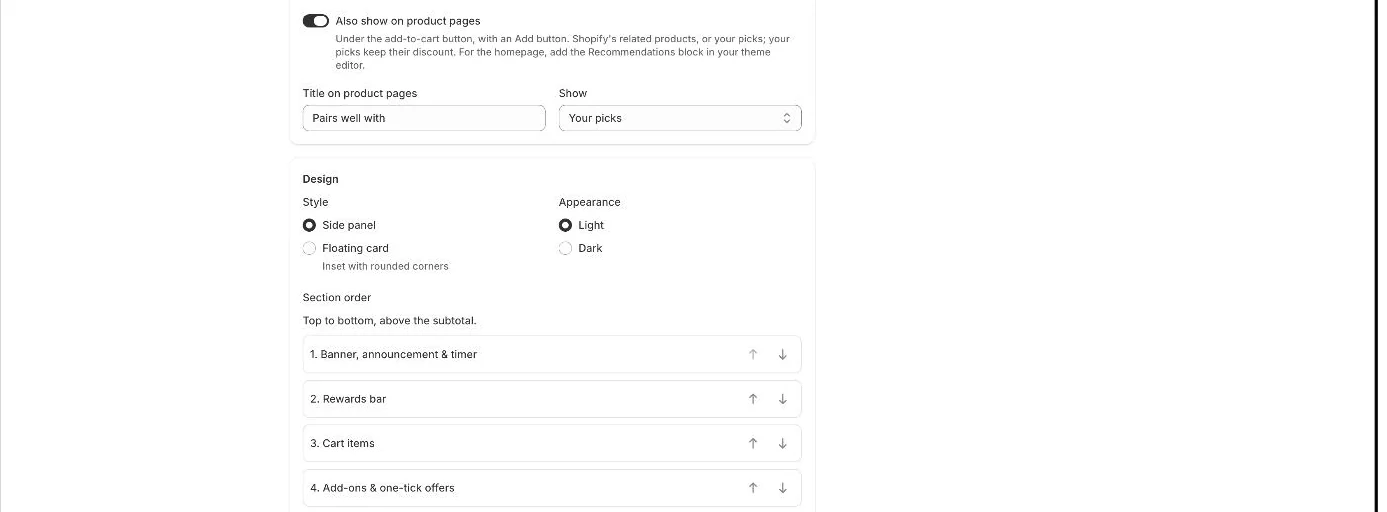
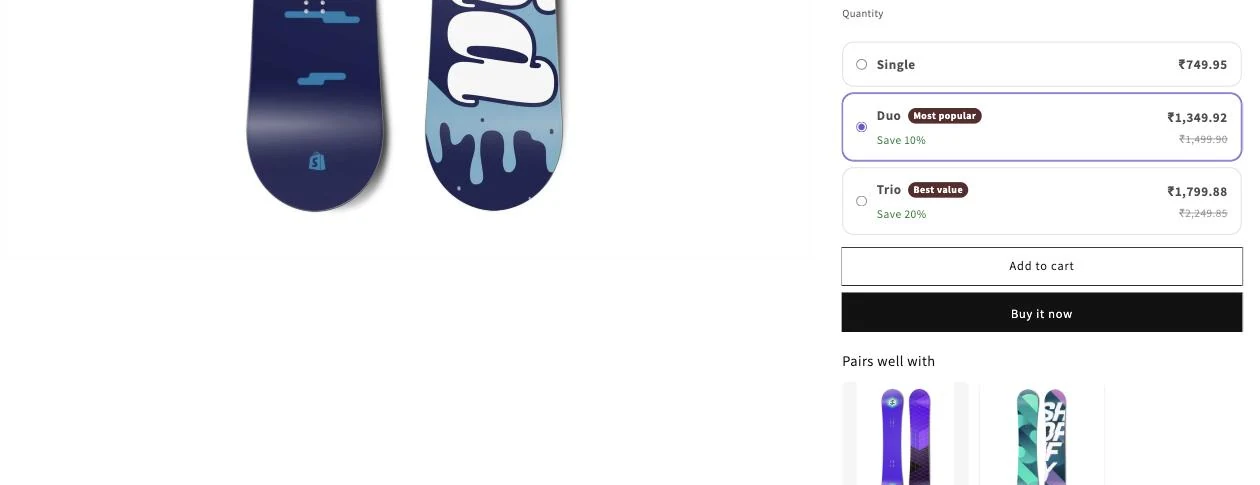
To show recommendations on product pages, turn on Also show on product pages on the Cart page. They appear under the add-to-cart button, each with an Add button. For the homepage or other pages, add the Recommendations app block in your theme editor; it shows your picks.
Steps for product pages
Section titled “Steps for product pages”- Open the app and go to Cart.
- In Recommendations, choose your products under Your picks if you want to use them.
- Turn on Also show on product pages.
- Edit Title on product pages (for example “Pairs well with”).
- Under Show, choose Shopify’s related products (your picks if none) or Your picks.
- Click Save in the save bar.
Steps for the homepage or other pages
Section titled “Steps for the homepage or other pages”- Open your theme editor (Online Store → Themes → Customize) and go to the page you want.
- Add a section or block and choose Recommendations from the Zegsu Upsell app blocks.
- Optionally fill in Heading. Leave it empty to use the title from the app.
- Click Save in the theme editor.
- Note: Product page recommendations need the Zegsu Upsell app embed turned on in your theme. See How do I turn on the offer widget in my theme?.
- Note: Up to 4 products show. The product being viewed and sold-out products are skipped. If nothing is left to show, the section is hidden.
- Note: Your picks keep their discount from Discount your picks, shown with a crossed-out price. Shopify’s related products stay at full price.
- Note: On the homepage and other non-product pages, the block shows your picks only, so choose some first.
- Note: If you add the Recommendations block to a product page, it replaces the automatic placement under the add-to-cart button.
- Note: Products with several variants show a variant selector.
Related articles
Section titled “Related articles”- How do I show product recommendations in the cart drawer?
- Which themes does Zegsu Upsell support?
- How do I change the brand colours and widget style?
Still having trouble? Contact us from Support inside Zegsu Upsell and we’ll help you directly.