
How do I set a custom Sender ID?
A Sender ID is the name your customers see as the sender of your SMS, for example your brand name instead of a phone number. Set it under Branding > Custom SMS Sender ID.
-
Open Branding in the SMSGo menu and click Custom SMS Sender ID.
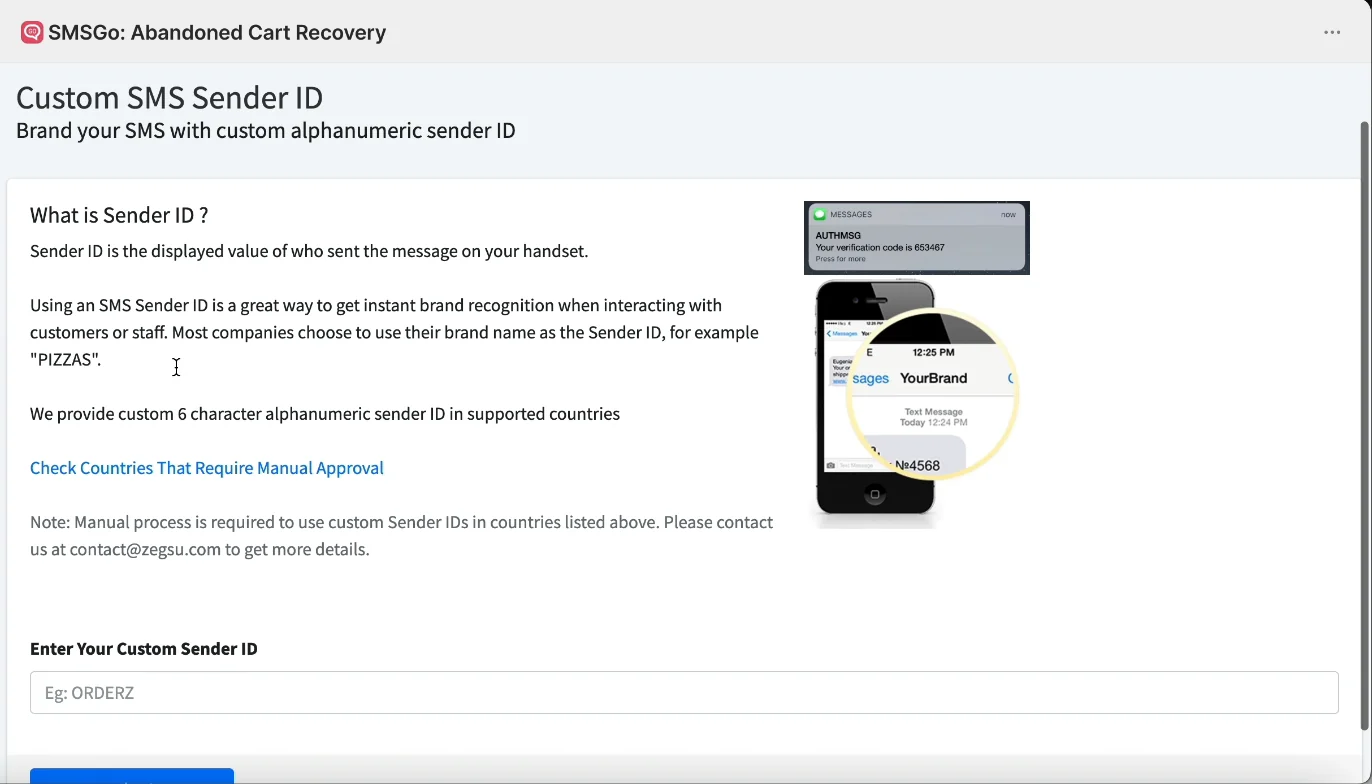
Branding > Custom SMS Sender ID -
Under Enter Your Custom Sender ID, type exactly 6 letters or numbers, for example ORDERZ.
-
Click Submit. You see the message “Your Sender ID has been registered.”
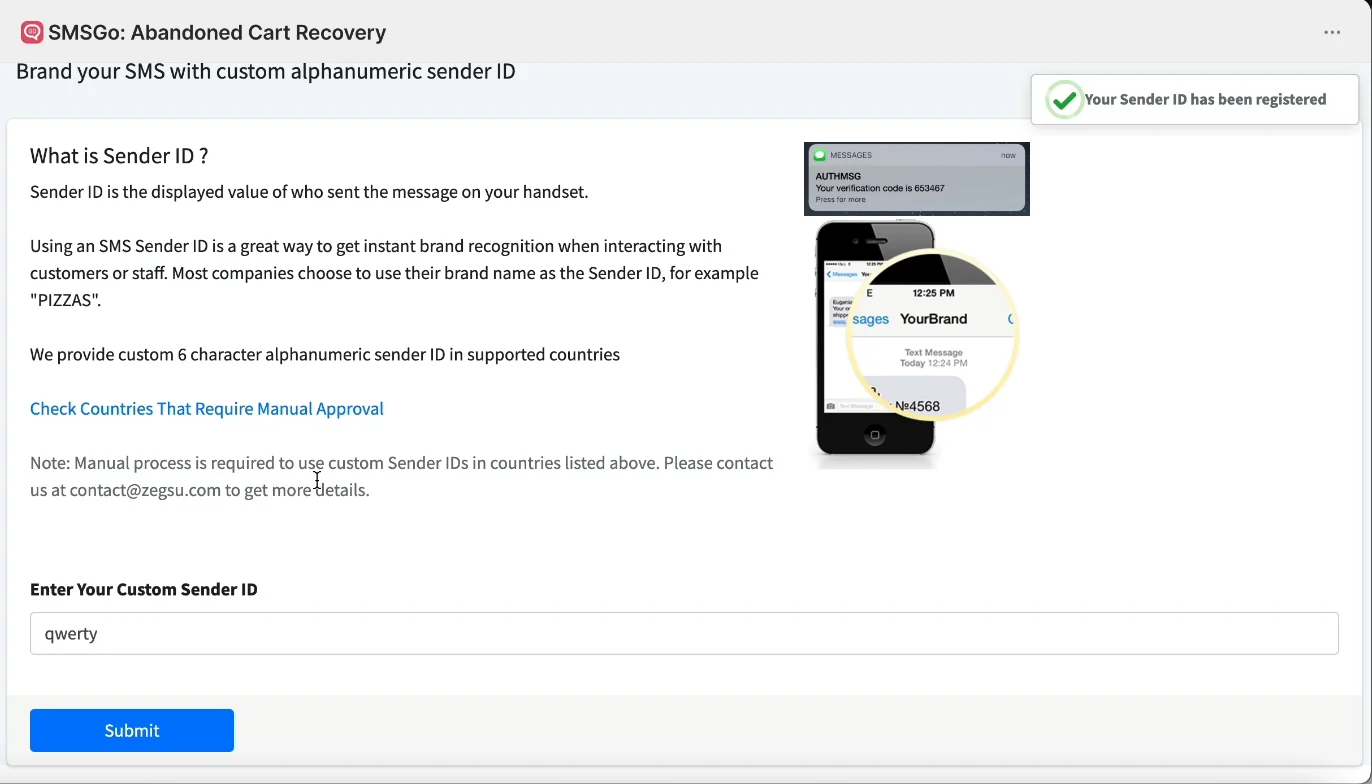
Your Sender ID has been registered
-
Note: Custom Sender ID is included in the Basic plan.
-
Note: Sender IDs work only in supported countries. Some countries need manual approval first. Click Check Countries That Require Manual Approval to see the list.
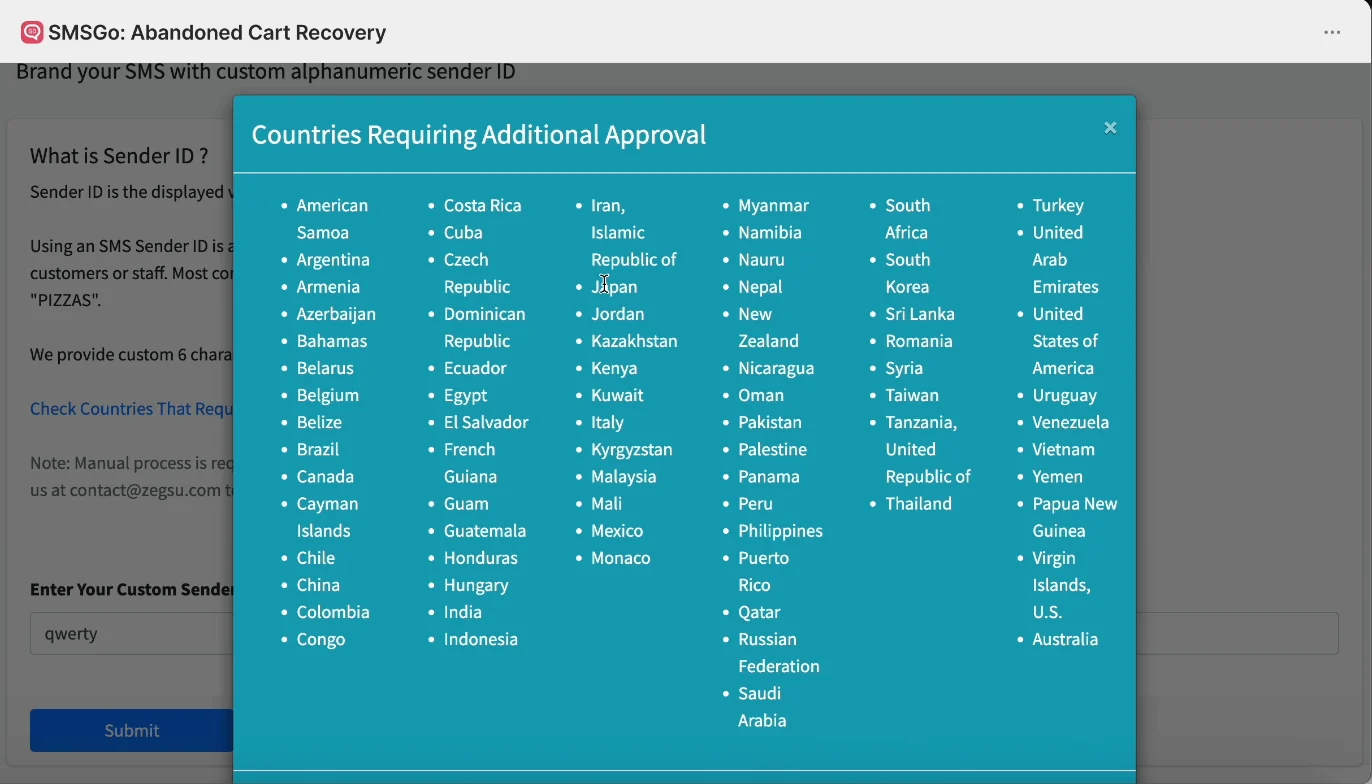
Countries that require additional approval -
Note: To use a Sender ID in a country that needs manual approval, email contact@zegsu.com.
Error states
Section titled “Error states”-
Sender ID should have 6 characters → Your Sender ID is shorter or longer than 6 characters. → Enter exactly 6 letters or numbers and click Submit again.
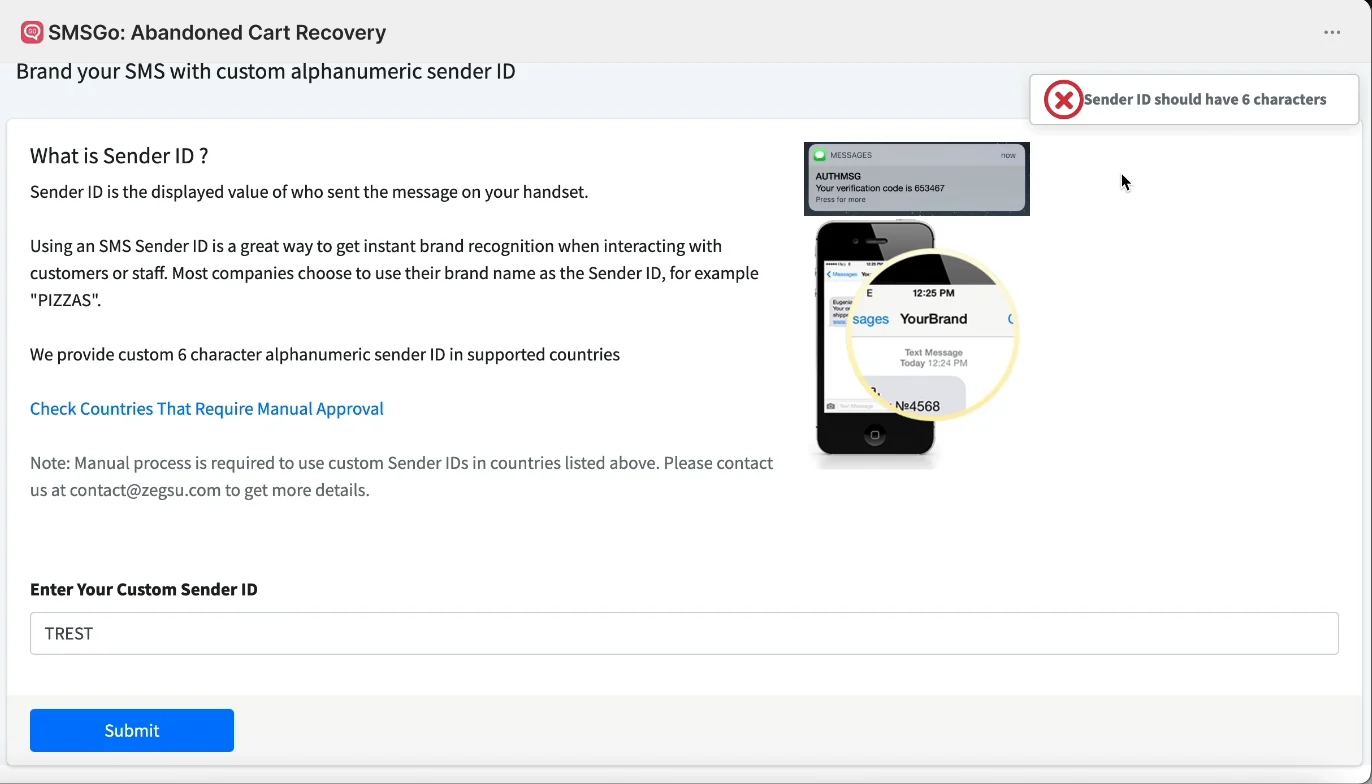
Error: Sender ID should have 6 characters
Still having trouble? Contact us from Help > Support inside SMSGo and we’ll help you directly.