
How do I change the brand colours and widget style?
Change your brand style on the Settings page. It is used by every offer, so they all match your store.
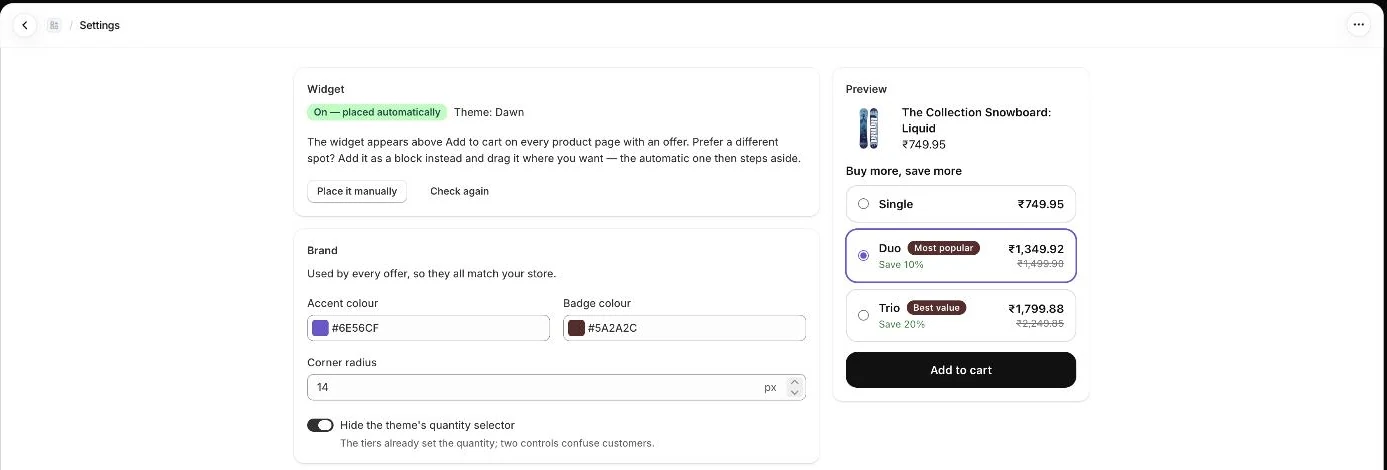
- Open Settings in the app menu.
- In the Brand section, choose an Accent colour.
- Choose a Badge colour for labels such as savings badges.
- Set the Corner radius between 0 and 24 px.
- Turn Hide the theme’s quantity selector on or off.
- Check the Preview on the right.
- Click Save in the bar at the top.
Quick option: template gallery
Section titled “Quick option: template gallery”When you create an offer, the template gallery shows Brand colour swatches at the top. Clicking a swatch sets your accent colour for every widget straight away, just like Settings.
- Note: The quantity selector option is on by default. The tiers already set the quantity, and two controls can confuse customers.
- Note: The cart drawer uses the same colours and corner radius. Its style (Side panel or Floating card), Light or Dark appearance and custom CSS are set on the Cart page.
- Note: Custom CSS is only available for the cart drawer, not the product page widget.
Related articles
Section titled “Related articles”- How do I change how the cart drawer looks?
- What offer templates are available?
- How do I turn on the offer widget in my theme?
- How do I translate the app into other languages?
Still having trouble? Contact us from Support inside Zegsu Upsell and we’ll help you directly.