
How do I see orders that used an offer?
Open Analytics in the app menu and click Orders with offers at the top. The Orders with offers page lists every order that used at least one Zegsu offer, newest first. You can filter by period and by offer, and export the list.
-
Open Zegsu Upsell, click Analytics in the app menu, then click Orders with offers at the top of the page.
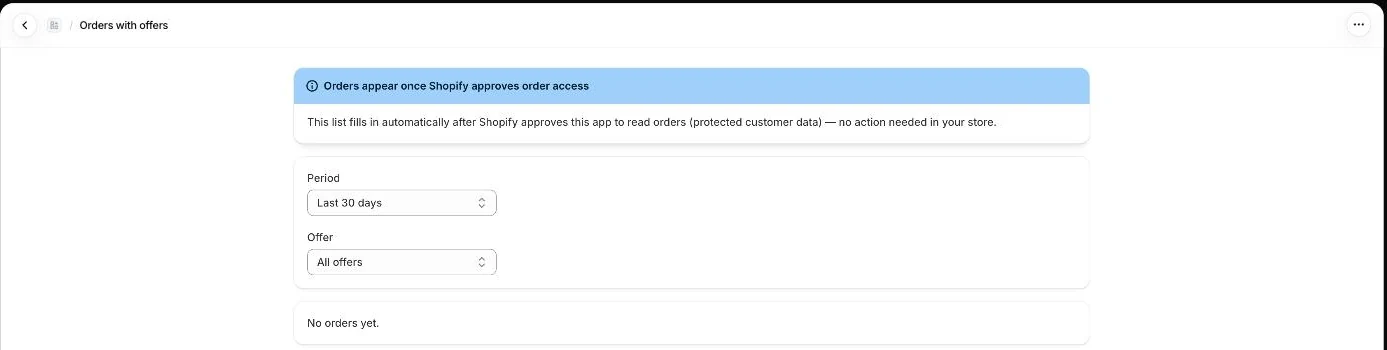
Orders with offers: period and offer filters -
Choose a Period: Last 7 days, Last 30 days or Last 90 days.
-
Choose an Offer to see only orders that used it, or keep All offers.
-
Read the totals at the top: Orders and Revenue from offers.
-
Review each row: Order, Date, Offers used, From offers and Order total.
-
Click an order number to open that order in your Shopify admin.
-
Click Export CSV to download the list as a spreadsheet file.
-
Use Newer and Older to move between pages.
- Note: The list shows 50 orders per page.
- Note: Export CSV downloads every order in the selected period and offer filter, not just the page you are viewing.
- Note: The CSV has the columns Order, Date, Total, From Zegsu offers and Offers.
- Note: From offers is the amount paid for offer items only. Order total is the whole order.
- Note: If an order was part of an A/B test, the badge shows the version, for example · A or · B.
- Note: The Offer filter only lists offers that were used in the selected period. Offers you deleted show as Removed offer.
- Note: Orders appear only after Shopify approves the app to read orders. Until then you see Orders appear once Shopify approves order access.
Related articles
Section titled “Related articles”- What does the Analytics page show?
- Why is revenue showing zero?
- How do I A/B test an offer?
- What limits apply to offers and settings?
Still having trouble? Contact us from Support inside Zegsu Upsell and we’ll help you directly.