
How do I set up post-purchase upsells?
A post-purchase upsell appears right after your customer pays, before the thank-you page. One click adds the product to the same order, without entering payment again. You can show up to 2 offers. If your customer declines the first, they see the second.
-
Open Zegsu Upsell and go to the Checkout page.
-
In After purchase: one-click upsell, switch on Show one-click upsells after payment.
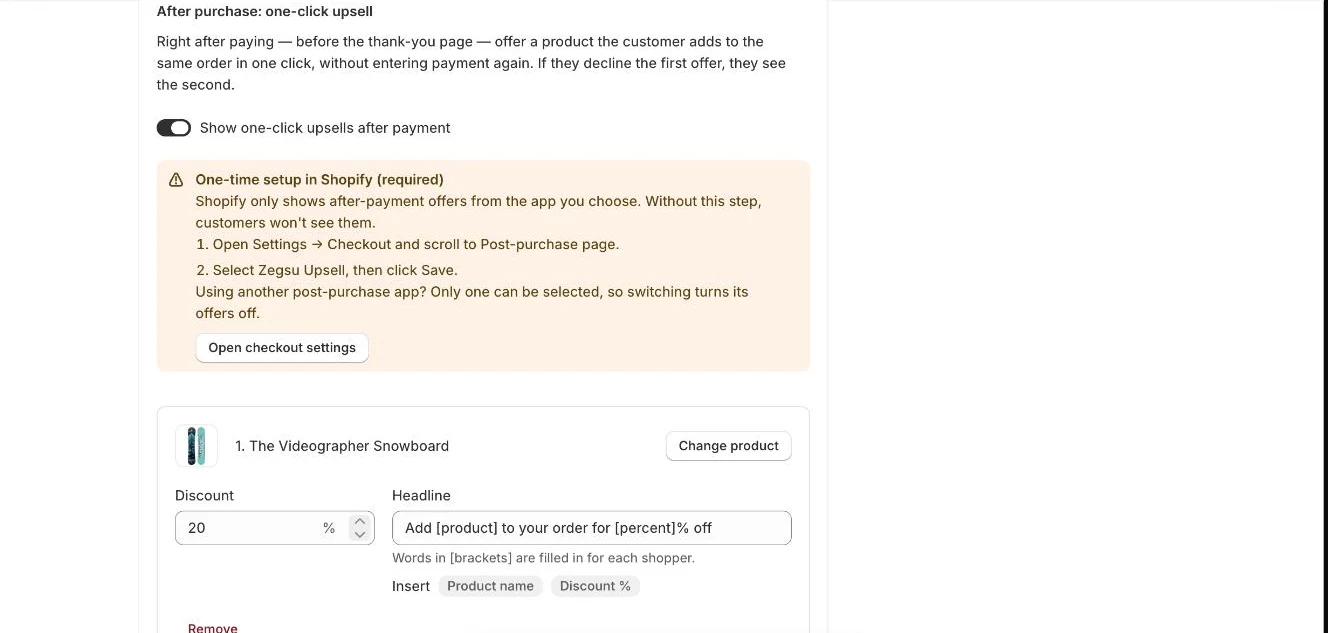
After purchase: one-click upsell, with the one-time Shopify setup and the offer -
Click Choose a product and pick the product to offer.
-
Enter a Discount percentage and edit the Headline. Words in brackets, like [product] and [percent], are filled in for each customer. Click Product name or Discount % under the field to insert one.
-
Optional: click Add a second offer to add a backup offer.
-
Click Save.
-
Click Open checkout settings in the banner. Scroll to Post-purchase page, select Zegsu Upsell, then click Save.
-
Place a test order paid by card to check the offer.
- Note: Step 7 is required. Shopify’s default for Post-purchase page is None. Until you select Zegsu Upsell, customers won’t see these offers.
- Note: Only one app per store can show after-payment offers. Selecting Zegsu Upsell turns off another post-purchase app’s offers.
- Note: The charge is added to the same order the customer just placed.
- Note: Your customer sees the price, shipping, taxes and total, then Pay now · [total] or Decline this offer.
- Note: Offers are not shown for products the customer just bought.
- Note: The default headline is “Add [product] to your order for [percent]% off”.
- Note: Shopify shows these offers for card payments in the Online Store. They may not appear for Apple Pay, Google Pay, PayPal, Klarna or similar. Your thank-you page offer covers those orders.
Error states
Section titled “Error states”- “We couldn’t add this to your order” (shown to your customer) → The product could not be added to the order. → The original order is still complete. Check the product is in stock, then place a new test order.
Related articles
Section titled “Related articles”- Why is my post-purchase offer not showing?
- How do I add an offer to the thank-you page?
- How do I add an order bump at checkout?
- What limits apply to offers and settings?
- How do I translate the app into other languages?
Still having trouble? Contact us from Support inside Zegsu Upsell and we’ll help you directly.