
How do I create a quantity break offer?
To create a quantity break offer, pick a template in the Offers page, choose the products, set the tiers and click Save and go live. The discount is then applied automatically in the cart and at checkout.
-
Open Offers in the app menu and click Create offer.
-
Click Use this on a template, for example Buy more, save more.
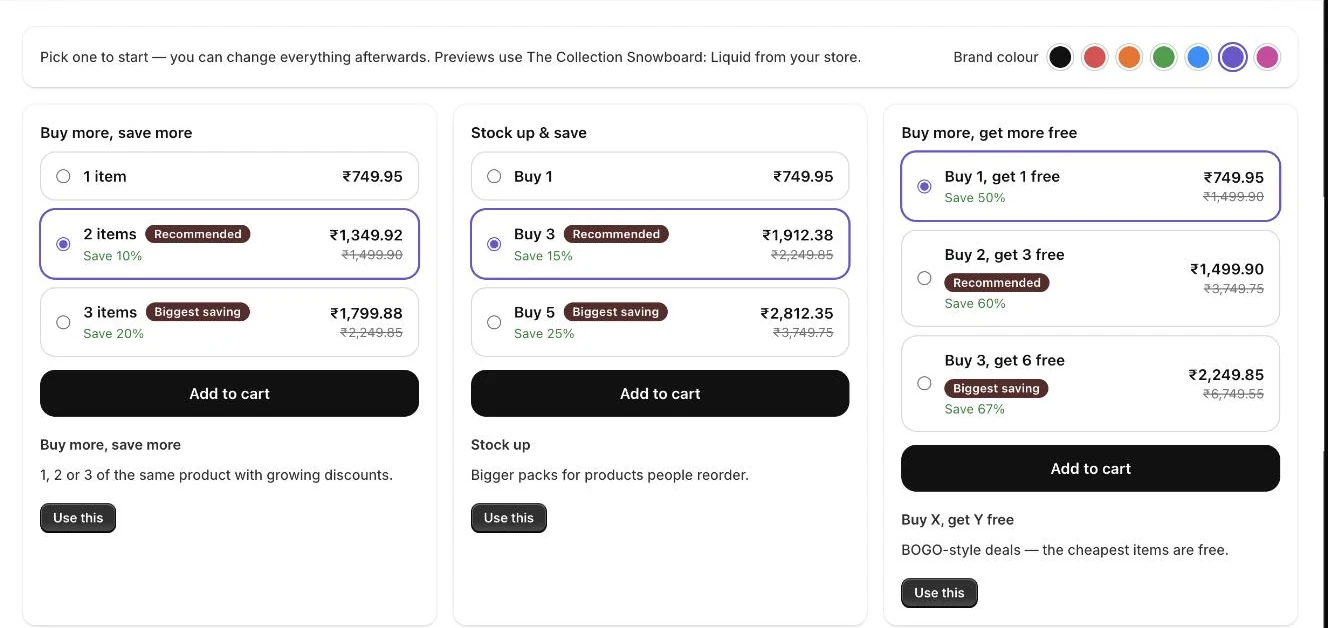
Choose an offer: each template shows a live preview with your product -
Under Show this offer on, choose All products, Specific products, or Collections, tags or vendors.
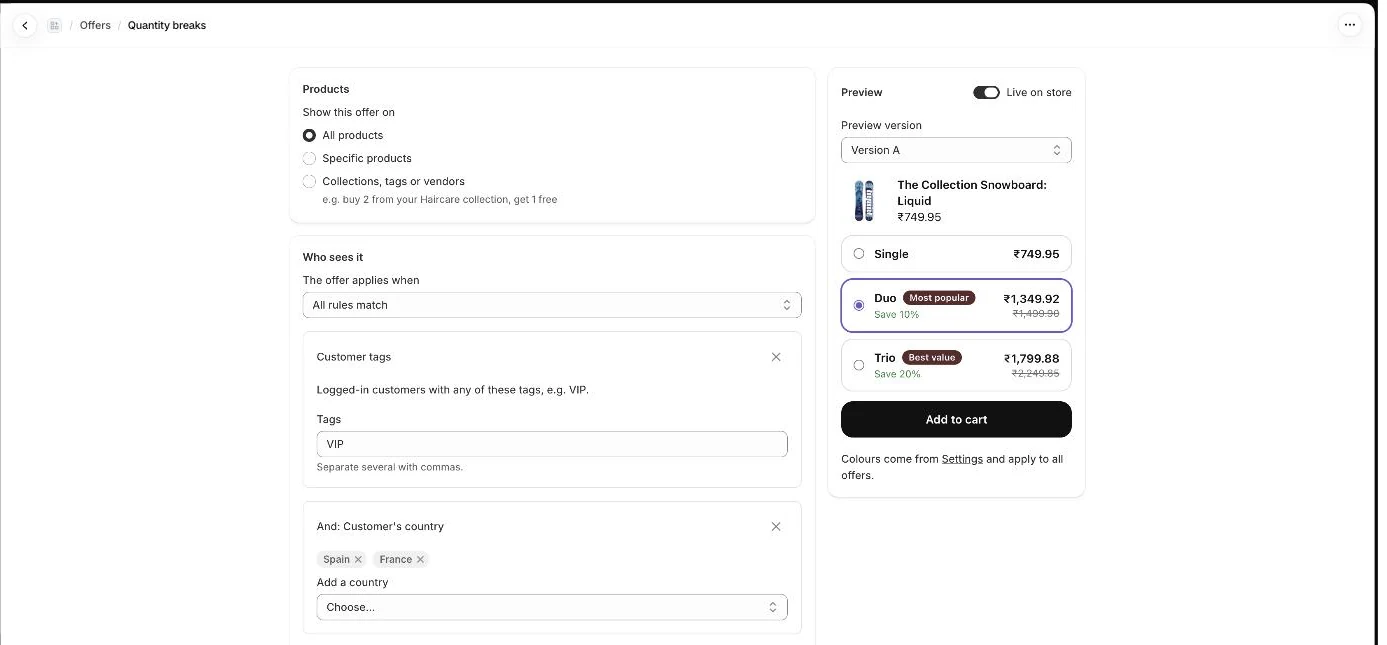
Choose which products the offer covers and who sees it, with a live preview -
Edit each tier in the Tiers section: Quantity, Discount, Value, Label and Badge.
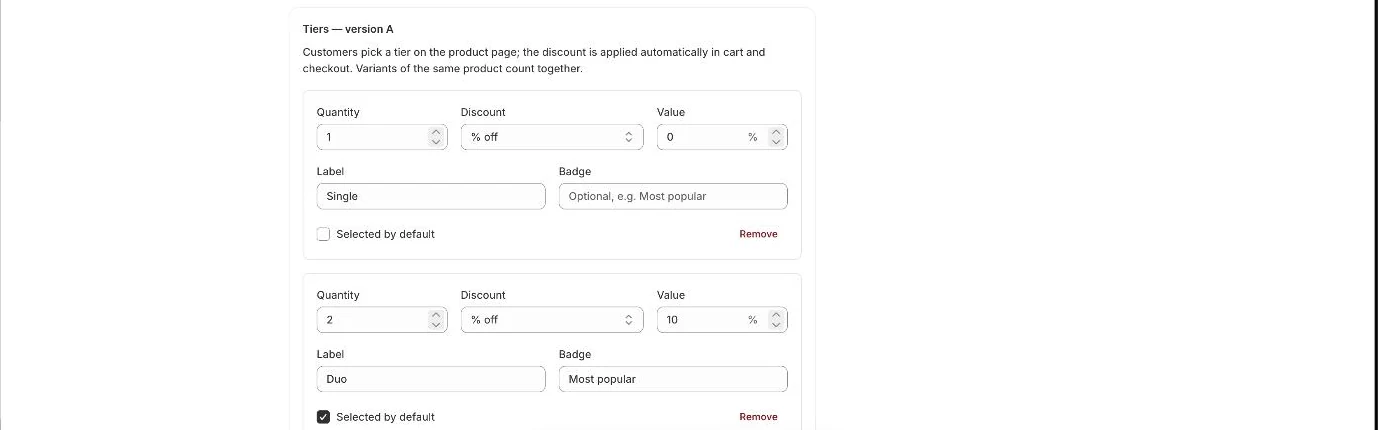
Each tier: quantity, discount type and value, label and badge -
Tick Selected by default on the tier you want pre-selected on the product page.
-
Optionally add a heading under Text > Heading above the tiers.
-
Check the Preview on the right and make sure Live on store is on.
-
Click Save and go live, then click View on store in the “Your offer is live” banner to test it.
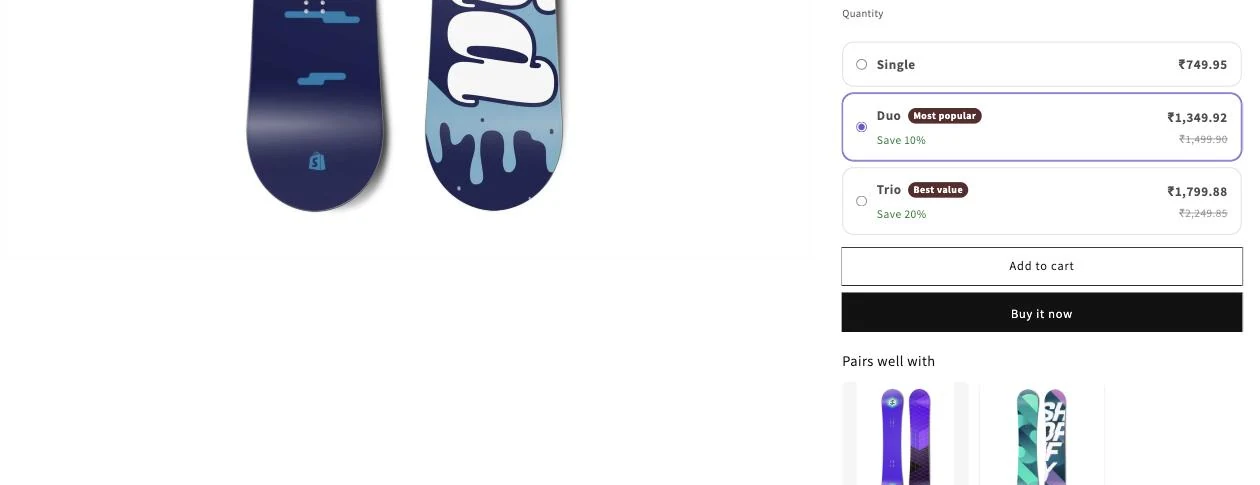
Quantity breaks on a product page, with Duo pre-selected and recommendations below
- Note: If you see “The widget is turned off in your theme”, click Turn on widget and press Save in the theme editor. Customers cannot see offers until you do.
- Note: Only one active offer can use All products. If one already exists, that option is disabled and shows which offer covers it.
- Note: New offers are added to the top of your Offers list, so they win over older offers on shared products.
- Note: The offer name defaults to the template name. Change it under Advanced > Offer name. It is also the discount’s name under Discounts in Shopify.
- Note: Optional sections let you limit the offer (Who sees it), run it on dates (Schedule) or test two versions (A/B test).
Related articles
Section titled “Related articles”- What offer templates are available?
- How do tiers and discounts work?
- How do I turn on the offer widget in my theme?
- How do I apply an offer to a collection, tag or vendor?
- Why is the offer widget not showing on my product page?
- What do the offer error messages mean?
Still having trouble? Contact us from Support inside Zegsu Upsell and we’ll help you directly.