
How do I add gift wrap, shipping protection or a one-tick offer to the cart?
You add gift wrap, shipping protection or a special-price product with Add-ons & one-tick offers in the Extras section of the Cart page. Each add-on shows as a tick box in the cart. Customers tick it to add the product and untick it to remove it.
-
Create the product in Shopify first, for example “Gift wrap”. You can hide it from your store’s collections.
-
Open the app, go to Cart, and find the Extras section.
-
Turn on Add-ons & one-tick offers.
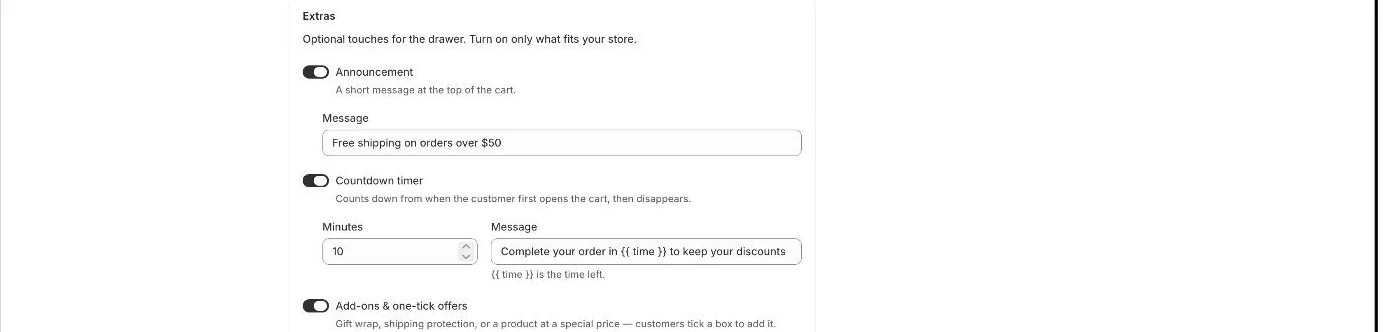
Extras: announcement, countdown timer and add-ons -
Click Choose a product and pick your product. Click Add another for a second add-on.
-
Edit the Label and the optional Description (for example “Wrapped with a card”).
-
Optionally set Discount when ticked. 0 means full price; above 0 makes it a one-tick offer, for example 20% off a best-seller.
-
Optionally tick Ticked by default to add it to every cart.
-
Click Save in the save bar.
- Note: You can have up to 2 add-ons.
- Note: Add-ons are normal paid products at their Shopify price. A discount set in Discount when ticked applies automatically at checkout, only when the add-on is ticked in the cart.
- Note: A Ticked by default add-on is added once per visit. Customers can untick it. Leave it off unless customers expect it.
- Note: If an add-on is the only thing left in the cart, it is removed automatically.
- Note: The add-on uses the product’s first variant.
- Note: The cart drawer must be turned on in your theme. See How do I turn on the cart drawer?.
Related articles
Section titled “Related articles”- What extras can I add to the cart drawer?
- What does the Zegsu cart drawer do?
- How do I add an order bump at checkout?
Still having trouble? Contact us from Support inside Zegsu Upsell and we’ll help you directly.