
How do I hide a post or pin it to the front?
Open Posts and click the ⋯ button under the post. Choose Pin to the front to show it first, or Hide from store to take it off your store. Your store updates straight away.
Hide or show a post
Section titled “Hide or show a post”-
Click Posts in the app menu.
-
Click ⋯ under the post and choose Hide from store. The post shows Hidden.
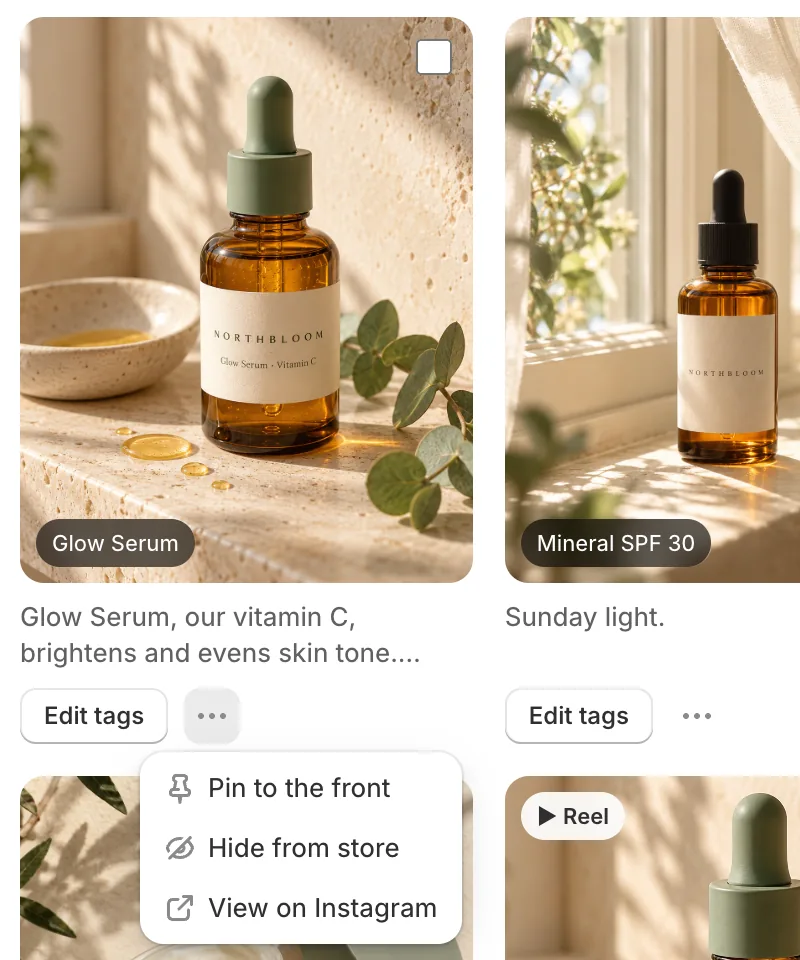
The ⋯ menu on a post: Pin to the front, Hide from store, View on Instagram -
To bring it back, use the Hidden filter, click ⋯ and choose Show on store.
Pin or unpin a post
Section titled “Pin or unpin a post”- Click ⋯ under the post and choose Pin to the front. The post shows Pinned.
- To undo it, click ⋯ and choose Unpin.
Hide several posts
Section titled “Hide several posts”Tick the box on each post, then click Hide (or Show) in the bar at the top.
- Note: Hiding a post hides it from every feed. It isn’t deleted from Instagram or from the app.
- Note: Pinned posts come first. The rest follow, newest first.
- Note: View on Instagram in the same menu opens the post on Instagram.
- Note: Posts you delete or archive on Instagram leave your store at the next sync. You don’t need to hide them.
Related articles
Section titled “Related articles”- How do I approve new posts before they show on my store?
- How do I tag products on a post?
- Why are my new Instagram posts not showing?
Still having trouble? Contact us from Support inside Zegsu Instafeed and we’ll help you directly.