
How do I customize my feed?
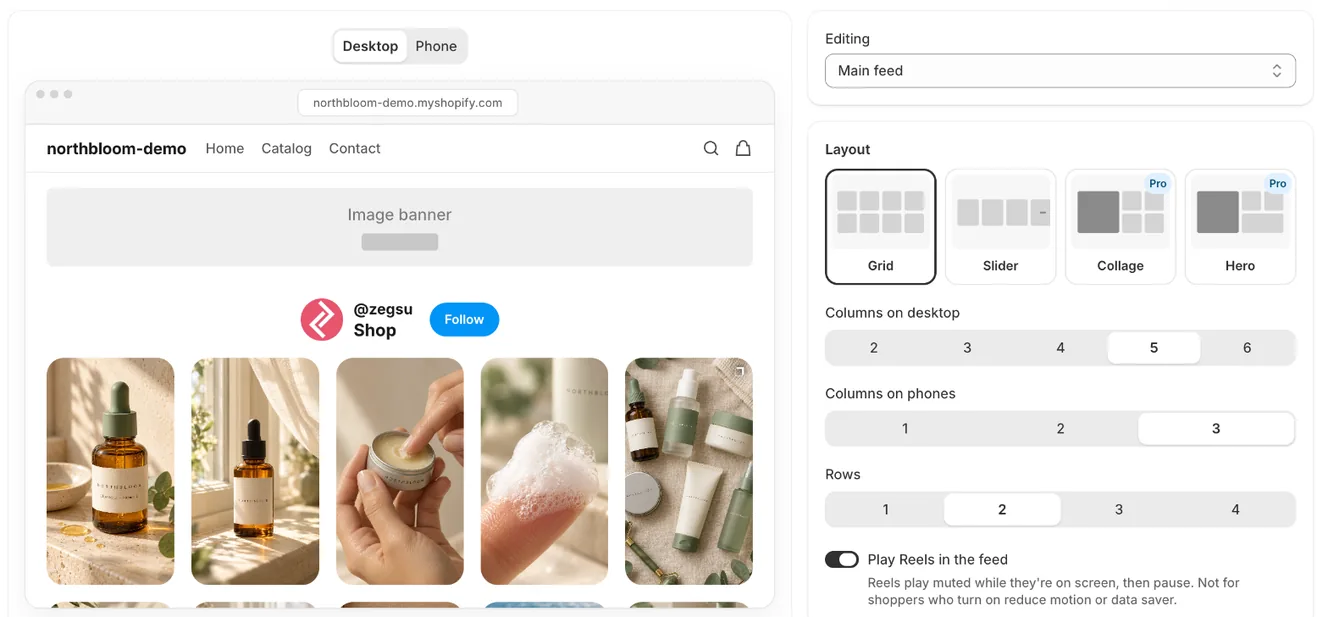
Open Feeds in the app menu. The settings are on the right and a preview of your store is on the left. Changes show in the preview straight away. Click Save to update your store.
-
Click Feeds in the app menu.
-
Change the settings in Layout, Style, Popup and Which posts.
-
Switch the preview between Desktop and Phone to check both.
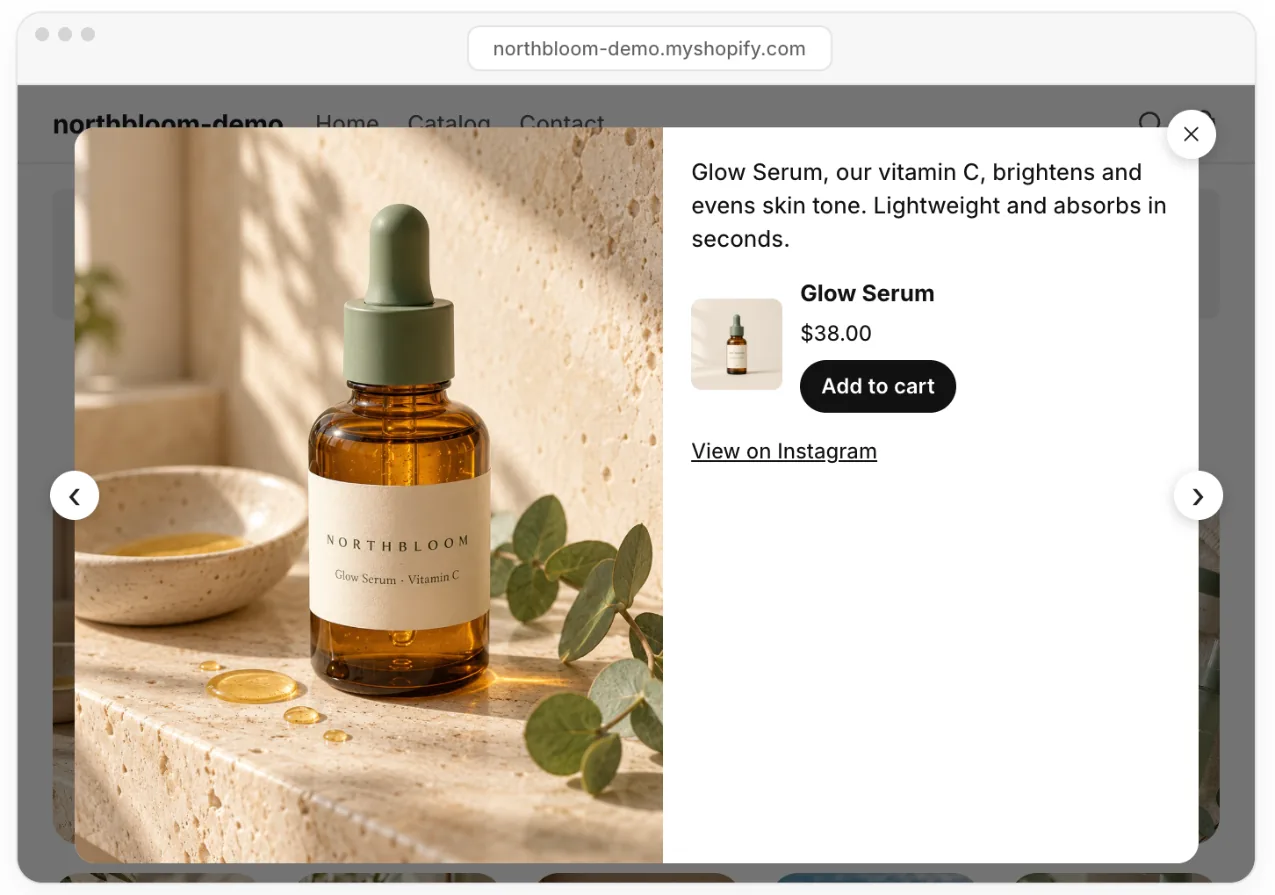
Click a post in the preview to see the popup shoppers get -
Click a post in the preview to see the popup shoppers get.
-
Click Save in the bar at the top. You see Feed saved. Your store is updated.
What you can change
Section titled “What you can change”- Layout: Grid, Slider, Collage or Hero (Collage and Hero are Pro); columns on desktop and phones and rows (Grid) or number of posts (Slider); playing Reels in the feed (Pro). Collage and Hero have a fixed shape.
- Style: tile shape, corners, spacing, header, title, likes and comments.
- Popup: caption, star ratings, prices, the add to cart button, the Instagram link.
- Which posts (Pro): a hashtag filter and the product-page filter.
- Note: Click Discard to undo changes you haven’t saved.
- Note: The preview uses your theme’s fonts and colours.
- Note: If you have more than one feed, pick the one to edit under Editing.
- Note: Heading font, size, alignment, width and padding are set in the theme editor. See How do I change the feed heading, width and padding?.
Related articles
Section titled “Related articles”- How do I choose a layout?
- How do I change the columns, rows and tile shape?
- How do I add a title or a profile header with a Follow button?
- How do I change what the popup shows?
- Why do I see “This feed uses a Pro feature” when I save?
Still having trouble? Contact us from Support inside Zegsu Instafeed and we’ll help you directly.