
How do I change the columns, rows and tile shape?
Open Feeds. The size controls are under Layout and the look of each tile is under Style.
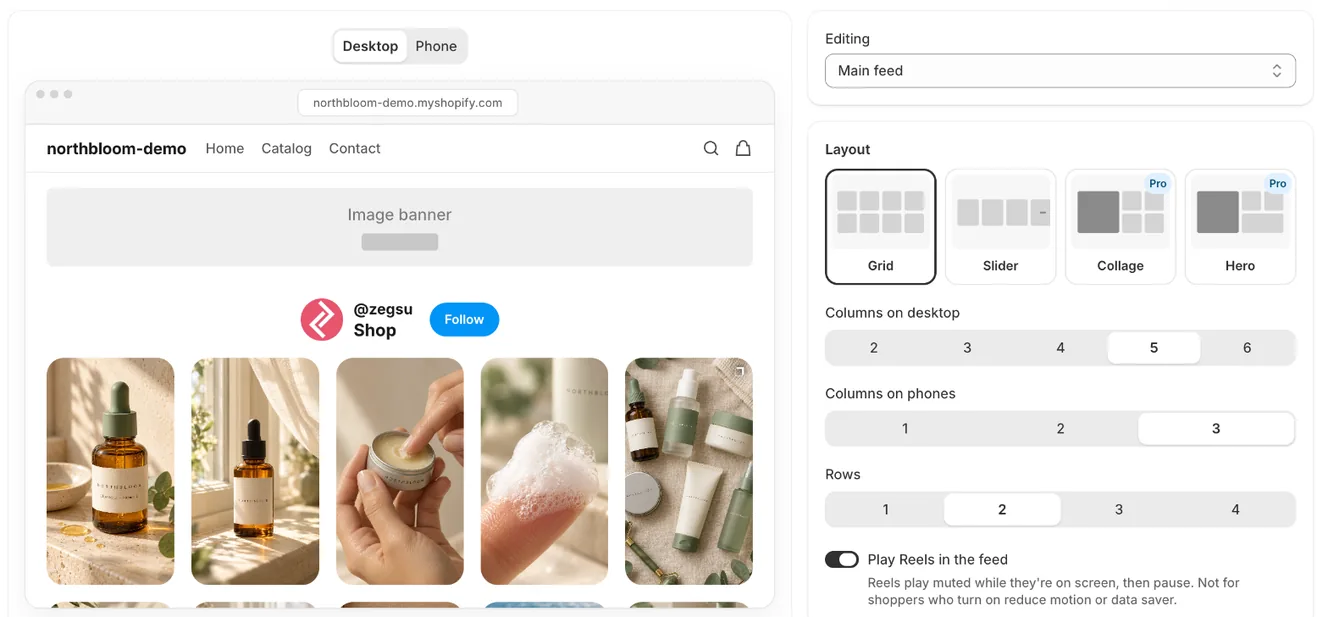
Layout
Section titled “Layout”- Columns on desktop: 2 to 6 (Grid and Slider).
- Columns on phones: 1 to 3 (Grid and Slider).
- Rows (Grid): 1 to 4. The grid shows columns × rows posts.
- Posts (Slider): 6, 8, 12, 16 or 24.
Collage and Hero have a fixed shape, so these controls don’t show for them: Collage shows 10 posts and Hero 6.
- Tile shape: Square, Portrait (4:5, like Instagram) or Reels (tall, 9:16).
- Corners: Square, Soft or Round.
- Spacing: None, S, M or L.
Click Save when you’re done.
- Note: The feed never shows empty slots. With fewer posts than columns, it shows fewer columns and keeps the tiles the same size. A last row that isn’t full is left out.
- Note: Phones show the same number of rows as desktop, in full rows. For example, 5 columns × 2 rows shows 10 posts on desktop, and with 3 columns on phones it shows 6.
- Note: Photos are cropped to the tile shape from the centre.
- Note: Collage and Hero always use square tiles and fixed post counts (10 and 6).
Related articles
Section titled “Related articles”Still having trouble? Contact us from Support inside Zegsu Instafeed and we’ll help you directly.