
How do I get started after installing the app?
Open the app from your Shopify admin and follow the Home page. It walks you through three steps: connect Instagram, choose a look, and add the feed to your store. It takes about two minutes.
New stores start with Pro for 7 days, no card needed, so everything is unlocked while you set up. Home shows Pro trial: N days left.
-
Open the app from Apps in your Shopify admin. The Home page opens.
-
Click Connect Instagram and log in to your Instagram Business or Creator account. Allow access to your profile and posts.
-
Back in the app, your latest posts are already in. Under Choose a look, pick Grid, Slider or Reels row.
-
Click Use Grid (or the look you picked).
-
Click Add to home page. The theme editor opens with the feed already in place.
-
Click Save in the theme editor, then return to the app.
-
Home shows Your feed is live when the app finds the feed on your published theme.
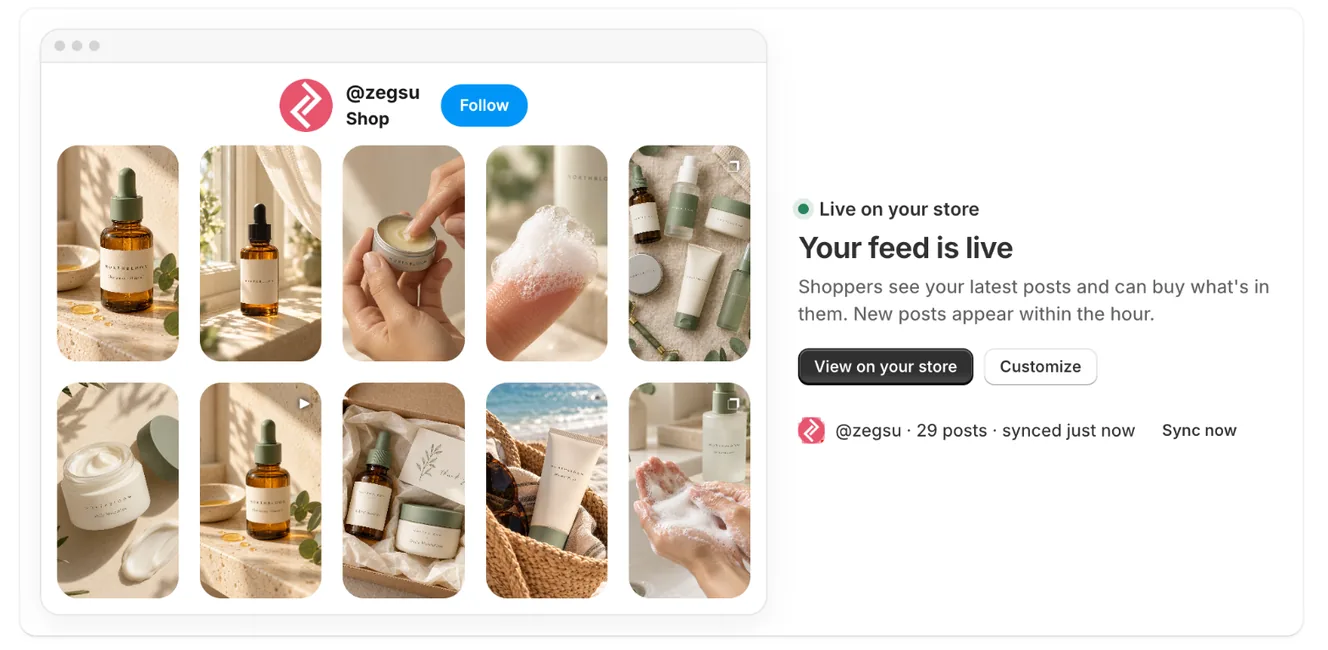
Home once the feed is live: a preview of your feed, View on your store, Customize and Sync now -
Tag products on your posts so shoppers can buy from them. During the trial, posts whose caption names one of your products are tagged automatically when they sync. Home suggests more matches under Make N posts shoppable.
- Note: The app checks your published theme. If you added the feed to a theme that isn’t published, Home says it’s on a development theme and shoppers can’t see it yet.
- Note: You can change the look any time in Feeds.
- Note: When the trial ends, keep Pro from Plans (Keep Pro after the trial), or do nothing and your store moves to Free on its own. Nothing is deleted. See What do the Free and Pro plans include?.
- Note: To show the feed on other pages too, use Where it shows on Home.
Related articles
Section titled “Related articles”- How do I connect my Instagram account?
- How do I add the feed to my store?
- How do I tag products on a post?
- How do I customize my feed?
- Why is my feed not showing on my store?
Still having trouble? Contact us from Support inside Zegsu Instafeed and we’ll help you directly.