
How do I add the feed to my store?
Use the buttons on Home. Each one opens your theme editor with the feed already added. You only need to click Save in the theme editor.
-
Open the app. On Home, click Add to home page. After your first page, use Where it shows and pick Home page, Product pages, Collection pages or Pages.
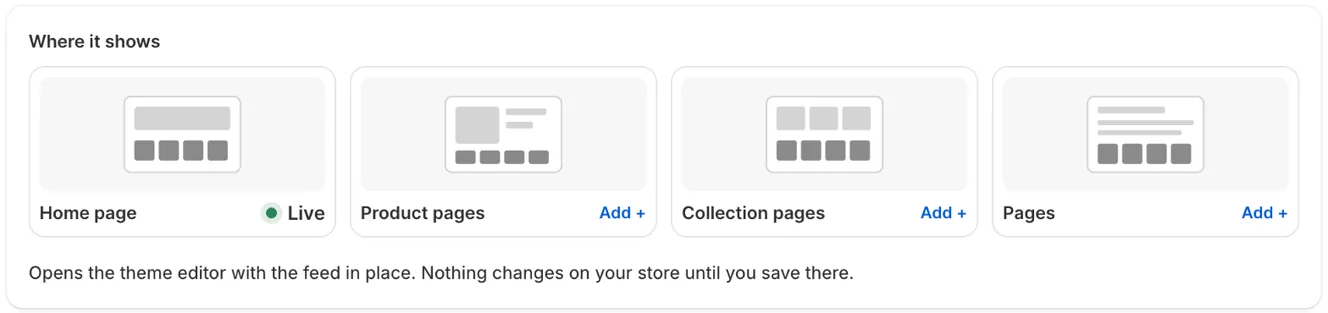
Where it shows: Live on the home page, Add + opens the theme editor for other page types -
The theme editor opens with the Instagram feed section in place.
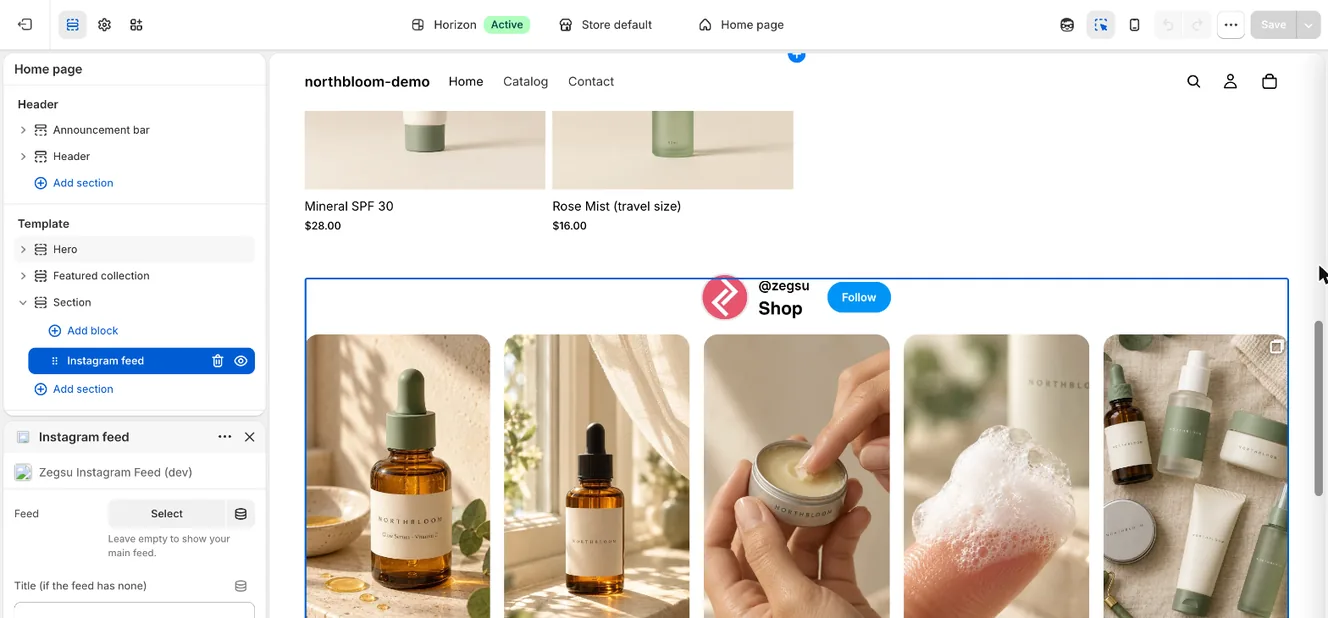
The Instagram feed block in the theme editor, with its Feed and Title settings -
Drag the section up or down if you want it somewhere else on the page.
-
Click Save.
-
Return to the app. The page shows Live under Where it shows.
Add it by hand
Section titled “Add it by hand”- In Shopify, go to Online Store → Themes → Customize.
- Open the page you want, click Add section, and pick Instagram feed under Apps.
- Click Save.
- Note: Nothing changes on your store until you click Save in the theme editor.
- Note: The app checks your published theme. A feed on an unpublished theme isn’t counted as live.
- Note: Your theme needs to support app sections (Online Store 2.0 themes do). See Which themes does the app work with?.
Related articles
Section titled “Related articles”- How do I show a different feed on each page?
- How do I change the feed heading, width and padding?
- Why is my feed not showing on my store?
- Which themes does the app work with?
Still having trouble? Contact us from Support inside Zegsu Instafeed and we’ll help you directly.