
How do I make a feed that shows only posts with a hashtag?
Open Feeds, go to Which posts and type the hashtag in Only posts with this hashtag, for example #summer. Click Save. The feed then shows only your posts whose caption has that hashtag.
-
Click Feeds in the app menu. Pick the feed under Editing, or create one with Add feed.
-
Under Which posts, type the hashtag in Only posts with this hashtag. The # is optional.
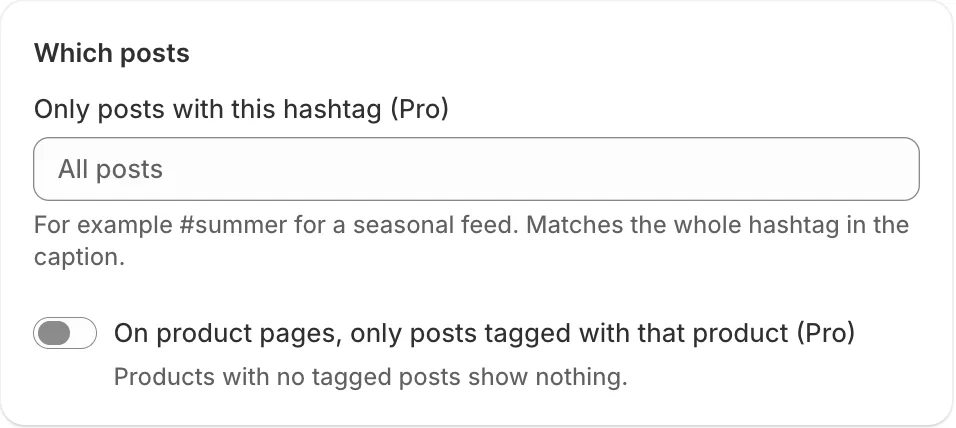
Which posts: a hashtag filter and the product-page filter, both Pro -
Check the preview. It shows only the matching posts.
-
Click Save.
- Note: This is a Pro feature. On Free you can preview it, and saving asks you to start the free trial or save without it.
- Note: It matches the whole hashtag, in any upper or lower case. #summer matches #Summer but not #summersale.
- Note: One hashtag per feed. For another hashtag, make another feed.
- Note: Only your own posts’ captions are checked, not other people’s posts with that hashtag.
- Note: If no posts have the hashtag yet, the preview says so and the feed fills in as you post with it.
Related articles
Section titled “Related articles”- How do I create more than one feed?
- How do I show only a product’s own posts on its product page?
- Why do I see “This feed uses a Pro feature” when I save?
Still having trouble? Contact us from Support inside Zegsu Instafeed and we’ll help you directly.