
How do I choose a layout?
Open Feeds and pick a layout under Layout. Grid and Slider are on every plan. Collage and Hero are Pro.
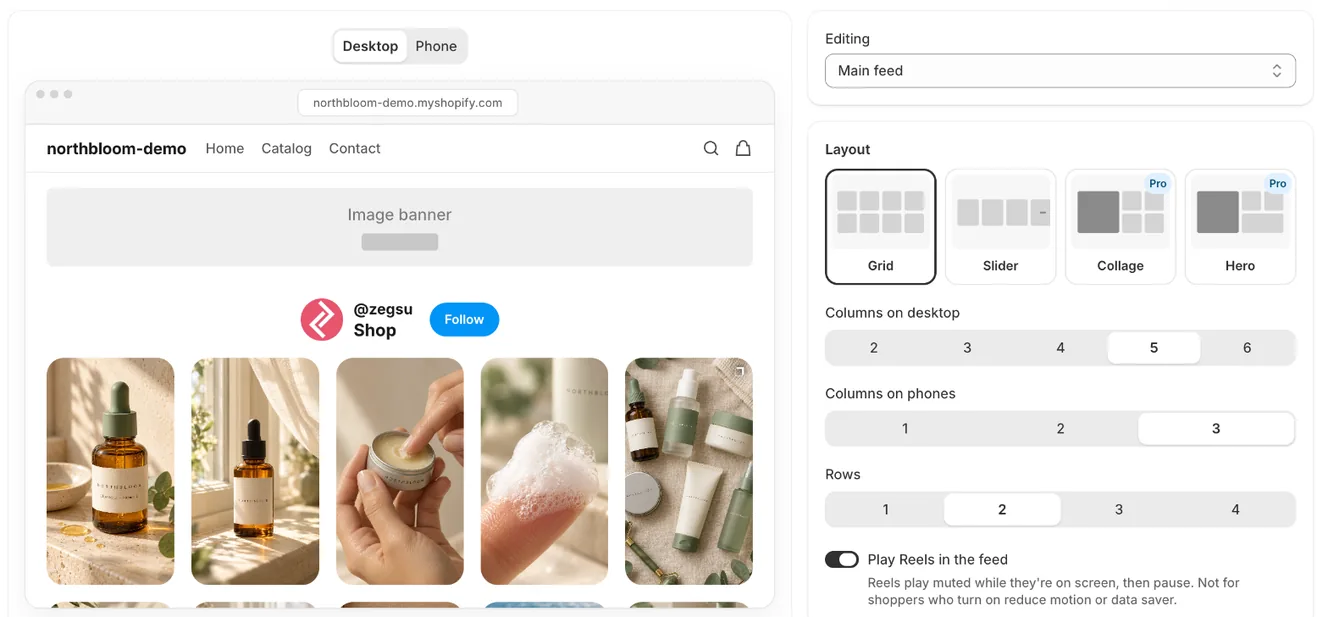
Layouts
Section titled “Layouts”- Grid: rows of posts. You choose the columns and the number of rows.
- Slider: one row that shoppers swipe or scroll, with arrows on desktop. You choose the columns and how many posts it holds.
- Collage (Pro): large and small square tiles mixed together. Shows 10 posts, or 5 when you have fewer than 10.
- Hero (Pro): one large post next to smaller ones. Shows 6 posts (5 on phones), or 3 when you have fewer than 6.
- Click Feeds in the app menu.
- Under Layout, click the layout you want.
- Check the preview, then click Save.
- Note: Collage needs at least 7 posts and Hero at least 4. With fewer, your store shows Grid until you post more. It switches on its own.
- Note: Collage and Hero always fill whole rows, so there are no empty spaces. That’s why the number of posts they show changes with how many posts you have.
- Note: Collage and Hero always use square tiles, so Tile shape is hidden for them.
- Note: For Slider, Show part of the next post shows a peek of the next tile so shoppers know they can swipe.
- Note: On Free you can preview Collage and Hero. Saving asks you to start the free trial or save without them.
Related articles
Section titled “Related articles”- How do I change the columns, rows and tile shape?
- How do I customize my feed?
- Why do I see “This feed uses a Pro feature” when I save?
- What limits apply to posts, videos and feeds?
Still having trouble? Contact us from Support inside Zegsu Instafeed and we’ll help you directly.